Connect ConnectWise to Lemhi and choose a default board
Enter your ConnectWise site, company ID and keys in Lemhi Settings, then choose the board Compass tickets land on.
Written By The Lemhi Product Team
Last updated 1 day ago
For a Lemhi Admin. When you finish, Lemhi shows Connected as with an API member name and has a default service board for Compass tickets.
Before you start
HaloPSA is not connected. Lemhi pushes to one PSA per tenant. While HaloPSA is connected, the ConnectWise Connect button is disabled.
Step 1: Enter the connection details
In Lemhi Engage, open Settings and select Integrations in the Settings menu.
On the ConnectWise PSA card, select Connect. The ConnectWise page opens.
Fill in Connect your ConnectWise PSA:
Select Test connection. When the test passes, select Save.
Check: The page shows Connected as followed by an API member name from your ConnectWise instance. If you have more than one API member, it may name a different one. The connection still uses your keys.
The test confirms Lemhi can read your companies and boards. It does not create a test ticket, so a missing Service Tickets level in the security role first shows up as a failed push.
If the role has no Project rows, the card shows "Project tickets need Project permissions on the API member. Service tickets still work." The connection still saves and service pushes work. Add the optional Project rows to the security role only if you want to push tasks to ConnectWise projects.
Lemhi never shows the private key again. After you save, the page shows the site, company ID, the last four characters of the public key, who connected it, and when it was last checked. To rotate keys later, use Re-enter keys.
Step 2: Choose the default service board
On the same page, under Default service board, choose the board Compass tickets should land on.
Select Save.
Service tickets go to this board unless the person pushing picks a different one, or sends the task to a ConnectWise project instead. The board's default status and ConnectWise's default priority apply, and ticket type is left unset.
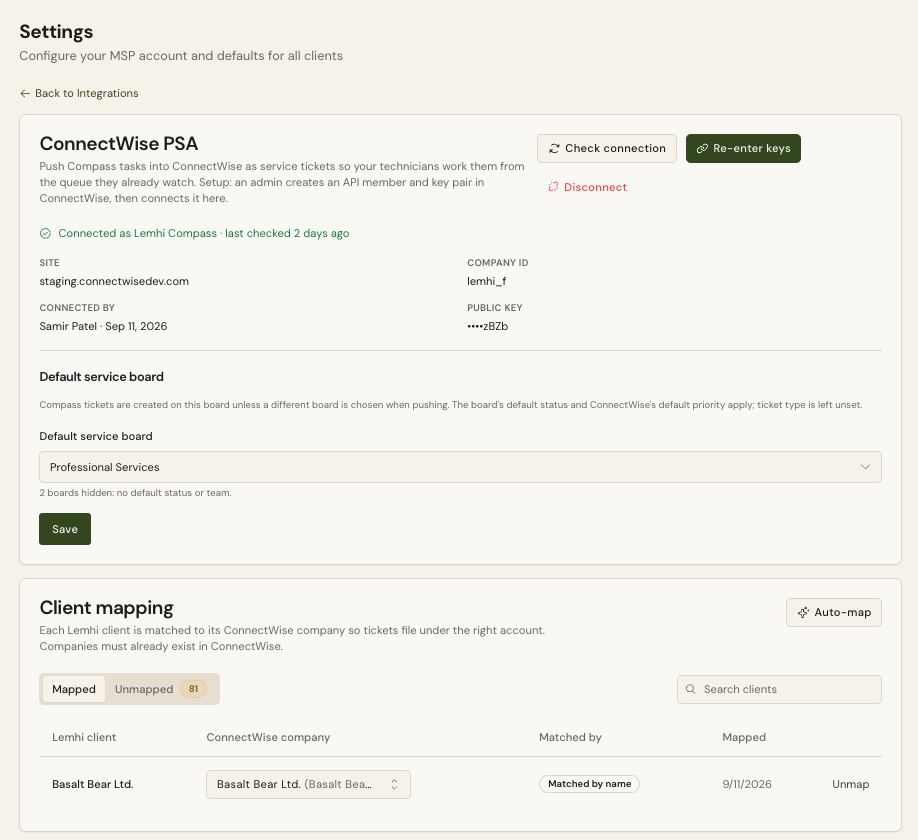
Check: The board you prepared in Check that your service boards have a default status and team appears in the picker. If you see a line such as "1 board hidden: no default status or team," that board is missing a default. Go back to that article for it.
Until a default board is saved, pushes are blocked with "No service board is set." This applies to project pushes too, so choose a default service board even if you plan to push only to projects.
Step 3: Expect a terms prompt on your next ConnectWise login
The next time an admin logs in to ConnectWise after the API member exists, ConnectWise shows a message titled Action Needed: Review Terms for ConnectWise Business Suite Integration. It names the API member and its security role, with PROCEED or REMIND ME LATER.
It also appears under Notices on the ConnectWise home page.
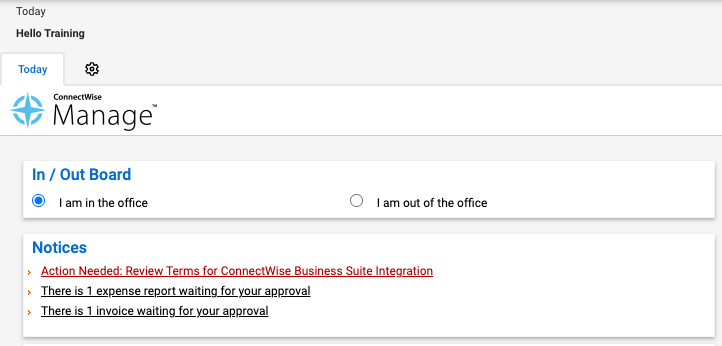
The integration works without these terms accepted. Accept them when convenient.
Next
Map clients to ConnectWise companies
Related
Was this helpful?
Still need help? Ask the team