Send reports to ScalePad
Send finished Lemhi reports to a ScalePad meeting as PDFs, or to a client note as links.
Written By The Lemhi Product Team
Last updated 10 days ago
This is for vCIOs who want a finished Lemhi report in front of the client in ScalePad. When done, the reports sit on a ScalePad meeting or in a client note.
The client needs a ScalePad license that includes Meetings (Lifecycle Manager X). Without it, Lemhi can't send reports, as PDFs or as a note.
Send reports
On the client's Reports page, check the reports you want to send.
Select Send to ScalePad.
Pick an upcoming ScalePad meeting to attach them as PDFs, or Add as a client note in ScalePad, then Send.
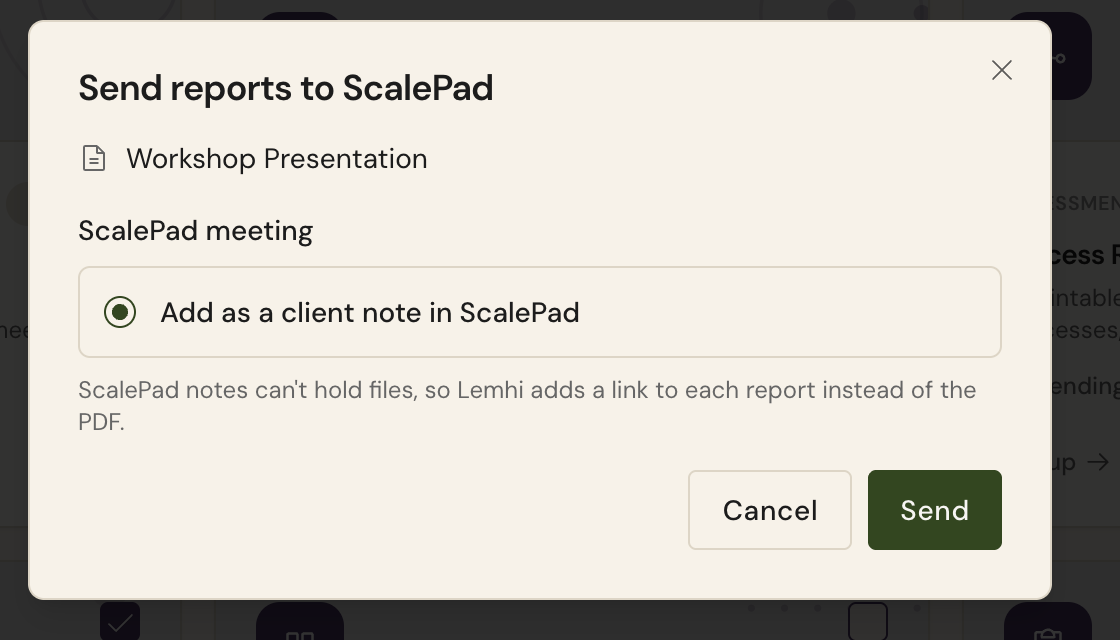
ScalePad notes can't hold files, so a client note gets one link per report instead of the PDF.
Sending a report to the same meeting again replaces Lemhi's earlier copy of that PDF. Nothing else on the meeting changes.
Related
Was this helpful?
Still need help? Ask the team