Rotate a client's deployment key
Regenerate a client's key in Engage and push the new script to that client's computers before they stop reporting.
Written By The Lemhi Product Team
Last updated 10 days ago
For a Tenant Admin replacing a client's deployment key. When you're done, the client's computers report under the new key and the old one no longer works.
The old key stops working within about a minute of regenerating. Computers that haven't received the new key stop reporting until they do, so have your RMM open and run the script right after regenerating.
Before you start
Tenant Admin in Engage. Regenerating a key needs it.
Access to the client's saved script in your RMM, or its platform script in Intune.
Steps
In Engage, open the client. In the left menu under Compass, open Shadow AI Usage, then the Deployment tab.
Regenerate the key.
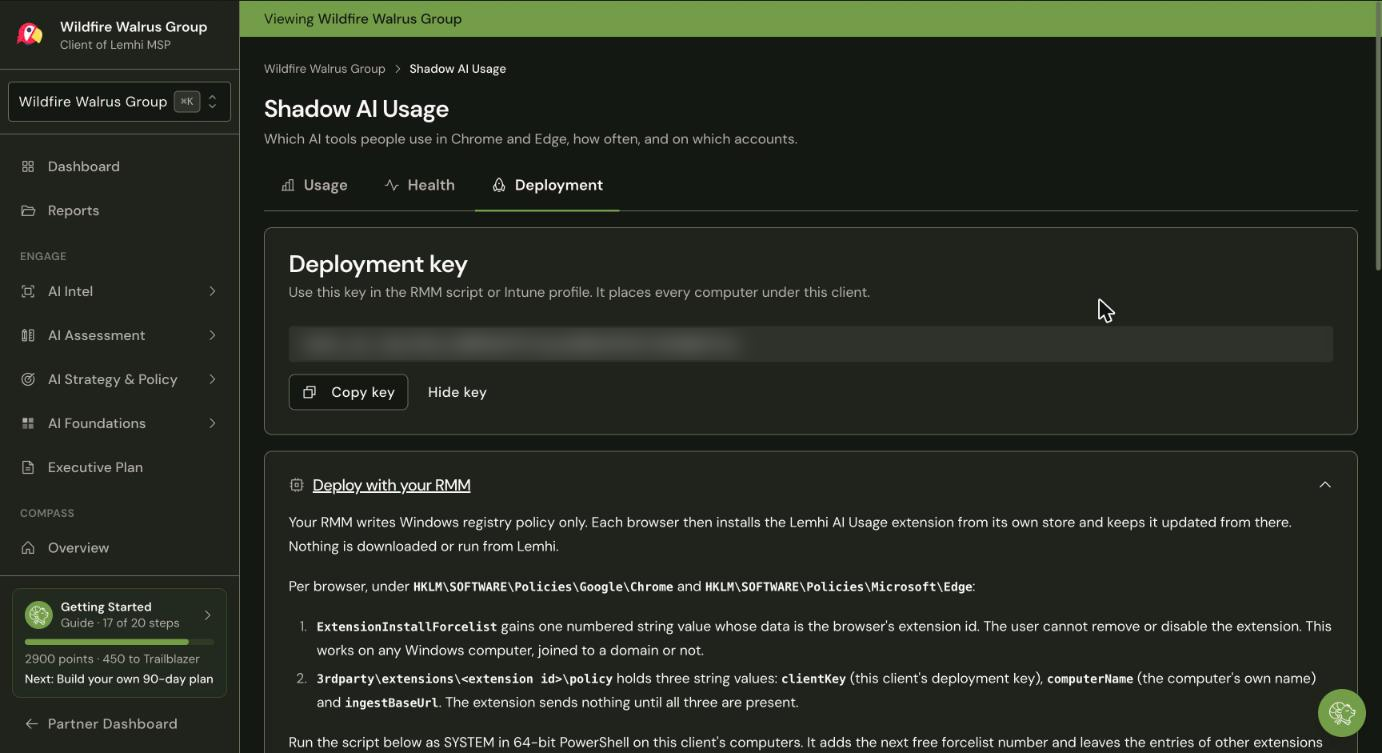
Expand Deploy with your RMM and click Copy script again. The copied script carries the new key.
In your RMM, replace the client's saved script with the one you just copied.
Run it on all of the client's computers straight away.
On the Deployment tab, check that each computer's Checked in time is later than when you regenerated. A computer still showing an earlier time hasn't received the new key.
For Intune, expand Deploy with Intune in step 3 and paste the copied script over the client's platform script in step 4. Intune runs a platform script once per device, and again only when the script changes, so editing it is what pushes the new key.
Related
Was this helpful?
Still need help? Ask the team