Deploy the extension with your RMM
Copy the client's script from Engage, run it as SYSTEM in 64-bit PowerShell from any RMM, read its output, and schedule it.
Written By The Lemhi Product Team
Last updated 10 days ago
For technicians deploying the Lemhi AI Usage extension to one client's Windows computers from any RMM that can run PowerShell as SYSTEM. When you're done, the client has its own saved script in your RMM, running on a schedule, and its computers show up on the client's Deployment tab.
Before you start
Access to the client in Engage. Regenerating a key needs Tenant Admin.
Rights in your RMM to create a script and run it as SYSTEM (or a local administrator) in 64-bit PowerShell.
Outbound HTTPS from the computers to
https://ingest.lemhi.ai,clients2.google.comandclients2.googleusercontent.com(Chrome Web Store), andedge.microsoft.comand*.dl.delivery.mp.microsoft.com(Microsoft Edge Add-ons). Normal web access covers this.
Steps
In Engage, open the client. In the left menu under Compass, open Shadow AI Usage, then the Deployment tab.
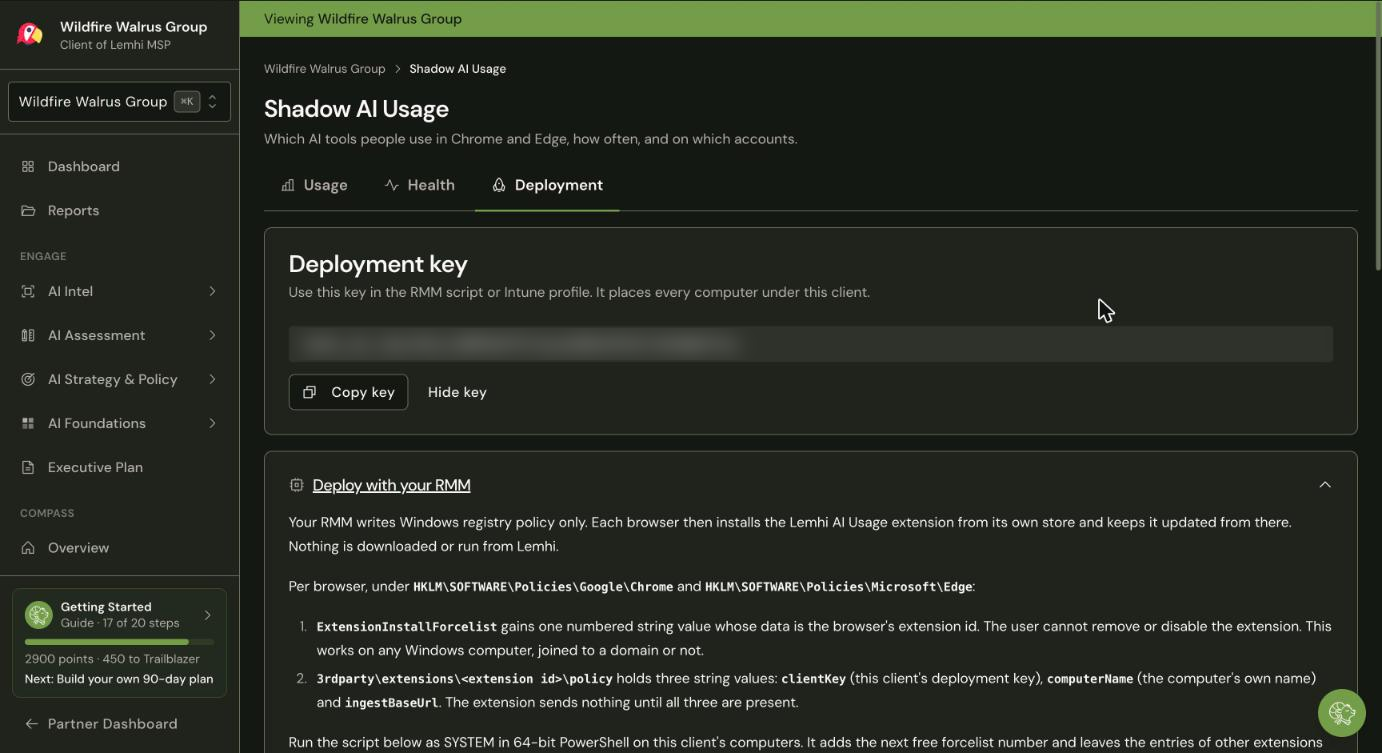
Click Deploy with your RMM to expand it, then click Copy script. The copied script already carries this client's key.
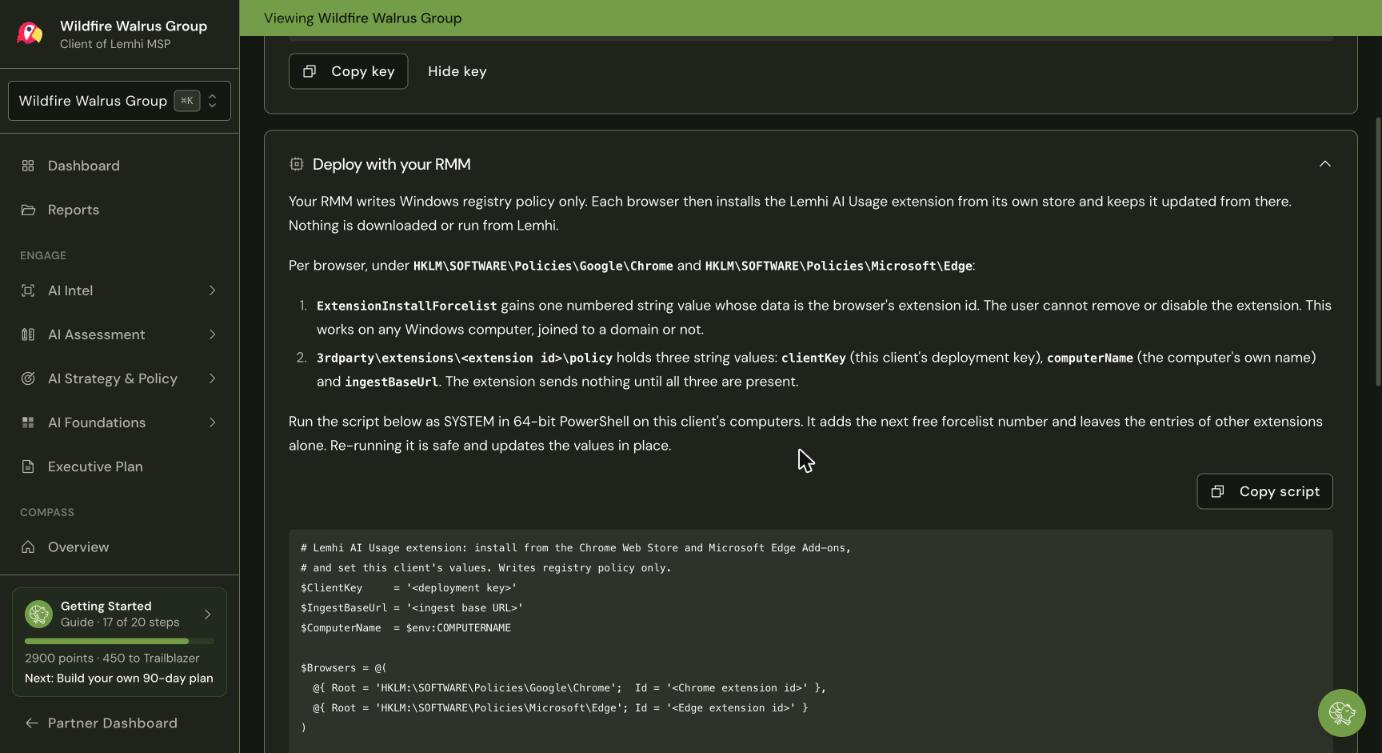
In your RMM, create a new script set to run as SYSTEM in 64-bit PowerShell. Name it for the client, for example
Lemhi AI Usage extension - Contoso.Paste the script unchanged. Its
$ClientKeyline already holds this client's key. Save it. Each client gets its own copy, because the key identifies the client. If you'd rather keep one script, store each client's key in a client-level RMM variable and put that variable in place of the$ClientKeyvalue.Run it on one computer you can reach, then restart Chrome and Edge on it. Within a few minutes the computer should show on the client's Deployment tab.
Run it against the rest of the client's Windows computers.
Read the output in your RMM (see below). A run that exits with code 1 shows as failed.
Schedule it daily or weekly against all of the client's computers.
What the script writes
Your RMM writes Windows registry policy only. Each browser then installs the Lemhi AI Usage extension from its own store and keeps it updated from there. Nothing is downloaded or run from Lemhi.
Per browser, under HKLM\SOFTWARE\Policies\Google\Chrome and HKLM\SOFTWARE\Policies\Microsoft\Edge:
ExtensionInstallForcelistgains one numbered string value whose data is the browser's extension id:kkjkfiijligobjmfghkheppbpmbngiclfor Chrome andkkijfgcaljdkipkaehbgkihkopbmigjmfor Edge. The user cannot remove or disable the extension. This works on any Windows computer, joined to a domain or not.3rdparty\extensions\kkjkfiijligobjmfghkheppbpmbngicl\policy(Chrome) and3rdparty\extensions\kkijfgcaljdkipkaehbgkihkopbmigjm\policy(Edge) hold three string values:clientKey(this client's deployment key),computerName(the computer's own name) andingestBaseUrl(https://ingest.lemhi.ai). The extension sends nothing until all three are present.
The script adds the next free forcelist number and leaves the entries of other extensions alone. Re-running it is safe and updates the values in place.
The key check
Before writing anything, the script checks that the key has the format of a Lemhi deployment key. If it does not, for example because a character was lost when it was copied, the script prints clientKey is not a Lemhi deployment key (expected 52 characters starting lemhi_dk_); copy it again from the Deployment tab, writes nothing and exits with code 1.
Reading the output
The script ends by reading back what it wrote. For each browser it prints the forcelist entry number, the first 12 characters of the key, the computer name, the ingest URL, and whether that browser is installed on the computer. A browser that is not installed gets the extension once it is. If any value reads back different from what the script wrote, the script exits with code 1, so your RMM shows the run as failed.
Then it prints three checks. They never fail the run:
Extension installed, per browser:
extension installed, version X (N profiles)once a browser has installed it, orextension not installed yet. On a first run, before the browser restarts, "not installed yet" is expected. A scheduled run shows the version later.Store reachable, per browser: whether this computer reaches the browser's extension store.
NOT reachablemeans a web filter or proxy is blocking it.Ingest reachable: whether this computer reaches Lemhi at
https://ingest.lemhi.ai.NOT reachablemeans a web filter or proxy is blocking it.ingest answered HTTPand a number means Lemhi's service had a problem, not your network. Try again later.
Your RMM runs the script as SYSTEM, which may use different proxy settings from your users' browsers. The deciding result is the computer appearing on the Deployment tab.
On a schedule
You can run the script on a schedule against all of this client's computers. A computer that already has the policy is left as it is, and a computer new to your RMM gets the policy on the next run. The script never carries an extension version: each browser updates the extension from its store on its own schedule, so a scheduled run neither reinstalls nor updates it.
The script
This page shows the script with its placeholders. The Deployment tab serves it with the real ingest URL already filled in, and Copy script adds the client's key. Copy the script from the Deployment tab, not from this page.
# Lemhi AI Usage extension: install from the Chrome Web Store and Microsoft Edge Add-ons,
# and set this client's values. Writes registry policy only, then reads back what it wrote
# and checks whether the extension is installed and its hosts are reachable from this computer.
$ClientKey     = '<deployment key>'
$IngestBaseUrl = '<ingest base URL>'
$ComputerName  = $env:COMPUTERNAME

if ($ClientKey -cnotmatch '^lemhi_dk_[A-Za-z0-9_-]{43}\z') {
  Write-Output 'clientKey is not a Lemhi deployment key (expected 52 characters starting lemhi_dk_); copy it again from the Deployment tab'
  exit 1
}

$Browsers = @(
  @{ Name = 'Chrome'; Root = 'HKLM:\SOFTWARE\Policies\Google\Chrome';  Id = 'kkjkfiijligobjmfghkheppbpmbngicl'
     Data = 'Google\Chrome'; Store = 'https://clients2.google.com/service/update2/crx'
     Exe = @("$env:ProgramFiles\Google\Chrome\Application\chrome.exe",
             "${env:ProgramFiles(x86)}\Google\Chrome\Application\chrome.exe",
             "$env:SystemDrive\Users\*\AppData\Local\Google\Chrome\Application\chrome.exe") },
  @{ Name = 'Edge';   Root = 'HKLM:\SOFTWARE\Policies\Microsoft\Edge'; Id = 'kkijfgcaljdkipkaehbgkihkopbmigjm'
     Data = 'Microsoft\Edge'; Store = 'https://edge.microsoft.com/extensionwebstorebase/v1/crx'
     Exe = @("$env:ProgramFiles\Microsoft\Edge\Application\msedge.exe",
             "${env:ProgramFiles(x86)}\Microsoft\Edge\Application\msedge.exe") }
)

# An HTTPS GET as this script's account with a 10 second timeout. Returns the HTTP status code,
# or the error class when no HTTP response arrived (for example NameResolutionFailure or Timeout).
$ProgressPreference = 'SilentlyContinue'
[Net.ServicePointManager]::SecurityProtocol = [Net.ServicePointManager]::SecurityProtocol -bor [Net.SecurityProtocolType]::Tls12
function Get-HttpsStatus($Uri) {
  try { return [int](Invoke-WebRequest -Uri $Uri -UseBasicParsing -TimeoutSec 10).StatusCode }
  catch {
    if ($_.Exception.Response) { return [int]$_.Exception.Response.StatusCode }
    if ($_.Exception.Status) { return [string]$_.Exception.Status }
    return $_.Exception.GetType().Name
  }
}

$Failed = $false
foreach ($b in $Browsers) {
  $list = Join-Path $b.Root 'ExtensionInstallForcelist'
  if (-not (Test-Path $list)) { New-Item -Path $list -Force | Out-Null }
  $entries = Get-ItemProperty -Path $list
  $names = @((Get-Item -Path $list).Property)
  $present = $names | Where-Object { (($entries.$_) -split ';')[0] -eq $b.Id }
  if (-not $present) {
    $max = ($names | Where-Object { $_ -match '^\d+$' } | ForEach-Object { [int]$_ } | Measure-Object -Maximum).Maximum
    New-ItemProperty -Path $list -Name ([string](1 + [int]$max)) -Value $b.Id -PropertyType String | Out-Null
  }

  $policy = Join-Path $b.Root "3rdparty\extensions\$($b.Id)\policy"
  if (-not (Test-Path $policy)) { New-Item -Path $policy -Force | Out-Null }
  New-ItemProperty -Path $policy -Name 'clientKey'     -Value $ClientKey     -PropertyType String -Force | Out-Null
  New-ItemProperty -Path $policy -Name 'computerName'  -Value $ComputerName  -PropertyType String -Force | Out-Null
  New-ItemProperty -Path $policy -Name 'ingestBaseUrl' -Value $IngestBaseUrl -PropertyType String -Force | Out-Null

  # Read back what was written. The key shows only its first 12 characters, as the Deployment tab does.
  $entries = Get-ItemProperty -Path $list -ErrorAction SilentlyContinue
  $entry = @((Get-Item -Path $list -ErrorAction SilentlyContinue).Property |
    Where-Object { (($entries.$_) -split ';')[0] -eq $b.Id }) | Select-Object -First 1
  $values = Get-ItemProperty -Path $policy -ErrorAction SilentlyContinue
  $key = [string]$values.clientKey
  $installed = @($b.Exe | Where-Object { Test-Path -Path $_ }).Count -gt 0
  $line = '{0}: forcelist entry {1}, key starts {2}, computer {3}, ingest {4}, {5}' -f $b.Name,
    $(if ($entry) { $entry } else { 'none' }), $key.Substring(0, [Math]::Min(12, $key.Length)),
    $values.computerName, $values.ingestBaseUrl,
    $(if ($installed) { 'browser installed' } else { 'browser not installed (the policy applies once it is installed)' })
  if (-not $entry -or $key -cne $ClientKey -or $values.computerName -cne $ComputerName -or $values.ingestBaseUrl -cne $IngestBaseUrl) {
    $Failed = $true
    $line += ', does not match what this script wrote'
  }
  Write-Output $line

  # Diagnostics. These print what they find and never fail the run: before a browser restart,
  # "not installed yet" is the expected answer.
  $folders = @(Get-ChildItem -Path "$env:SystemDrive\Users\*\AppData\Local\$($b.Data)\User Data\*\Extensions\$($b.Id)\*" -Directory -ErrorAction SilentlyContinue)
  $versions = @($folders | ForEach-Object { $v = $null; if ([version]::TryParse(($_.Name -split '_')[0], [ref]$v)) { $v } })
  $profiles = @($folders | ForEach-Object { $_.Parent.FullName } | Sort-Object -Unique).Count
  if ($versions.Count -gt 0) {
    Write-Output ('{0}: extension installed, version {1} ({2} profile{3})' -f $b.Name,
      ($versions | Sort-Object -Descending | Select-Object -First 1), $profiles, $(if ($profiles -eq 1) { '' } else { 's' }))
  } else {
    Write-Output "$($b.Name): extension not installed yet (installs when the browser next starts with this policy)"
  }

  $status = Get-HttpsStatus $b.Store
  if ($status -is [int]) { Write-Output "$($b.Name): store update host reachable" }
  else { Write-Output "$($b.Name): store update host NOT reachable: $status; allow it through your web filter" }
}

$status = Get-HttpsStatus "$($IngestBaseUrl.TrimEnd('/'))/healthz"
if ($status -eq 200) { Write-Output 'ingest reachable' }
elseif ($status -is [int] -and $status -ne 403) { Write-Output "ingest answered HTTP $status (the service, not your network); try again later" }
else { Write-Output "ingest NOT reachable: $(if ($status -is [int]) { "HTTP $status" } else { $status }); allow this host through your web filter and proxy" }

Write-Output 'This computer appears on the Deployment tab after its first check-in, within a few minutes of a browser starting with this policy in place.'
if ($Failed) { exit 1 }
Steps for your RMM
Next
Check that a computer has the extension
Related
Was this helpful?
Still need help? Ask the team