Push a Compass task to a HaloPSA ticket
Log HaloPSA tickets from one or several active Compass tasks, see what the technician gets, and recover from a failed push.
Written By The Lemhi Product Team
Last updated 1 day ago
For vCIOs and account managers. When you finish, a Compass task has a HaloPSA ticket in your technicians' queue and shows its ticket number.
Anyone on your team with the Admin or Member role who has Compass access can push, link, and unlink tickets. Only active tasks can be pushed. Completed, ignored, and removed tasks cannot.
Push one task
In a client's Compass > Tasks, open the task.
Select Push to HaloPSA.
Review the dialog: the client, the Ticket type (set in Settings, shown here and not editable), the Team (prefilled with your default; change it for this ticket if you need to), and a preview of the ticket.
Select Create ticket.
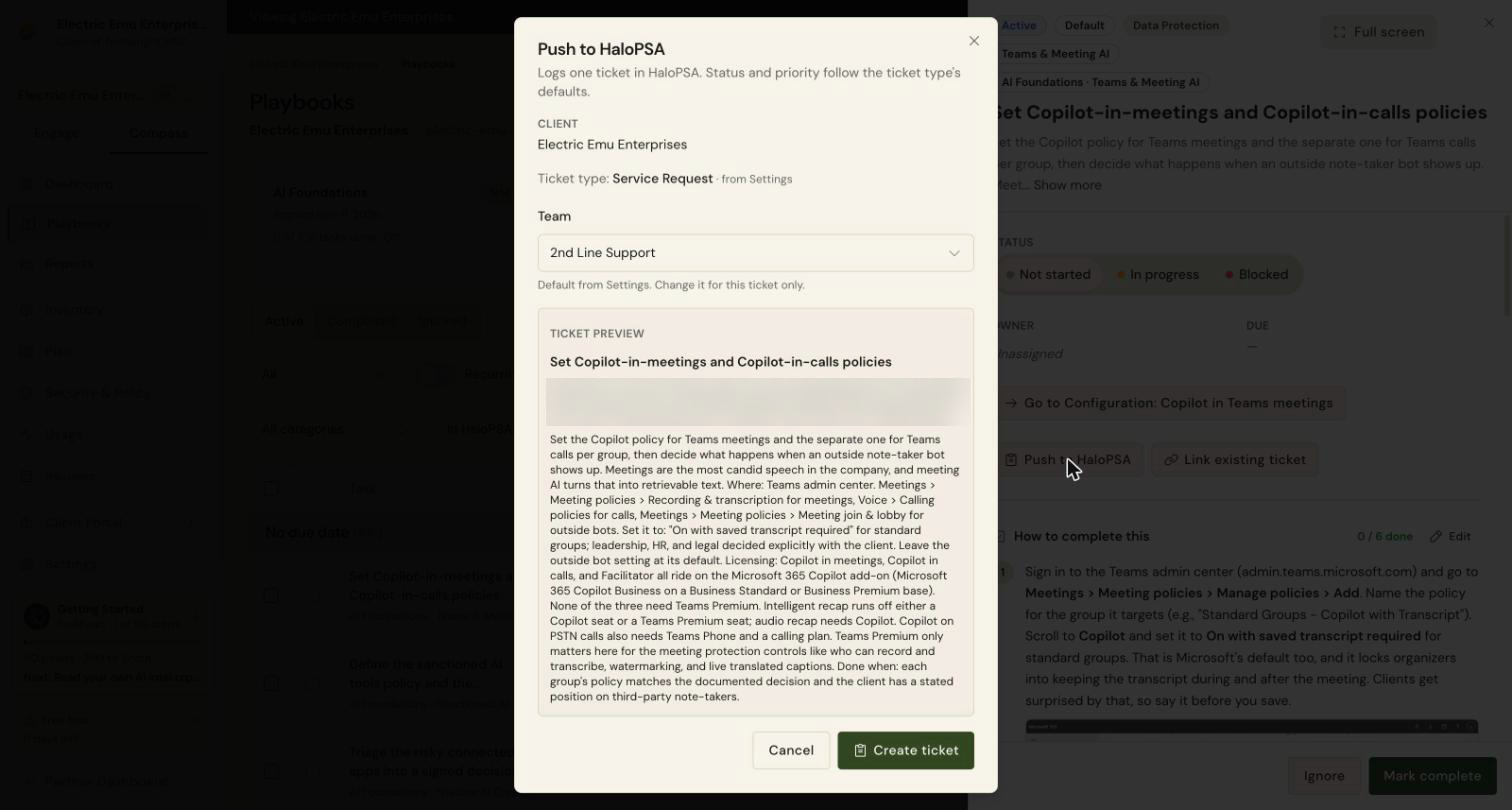
Check: A message confirms "Ticket #N created in HaloPSA" with an Open link, and the task shows a ticket chip with its Halo ticket number, for example Halo #12345.
Push several tasks at once
On the Tasks list (Active tab), select between two and 50 tasks.
Select Push to HaloPSA in the action bar.
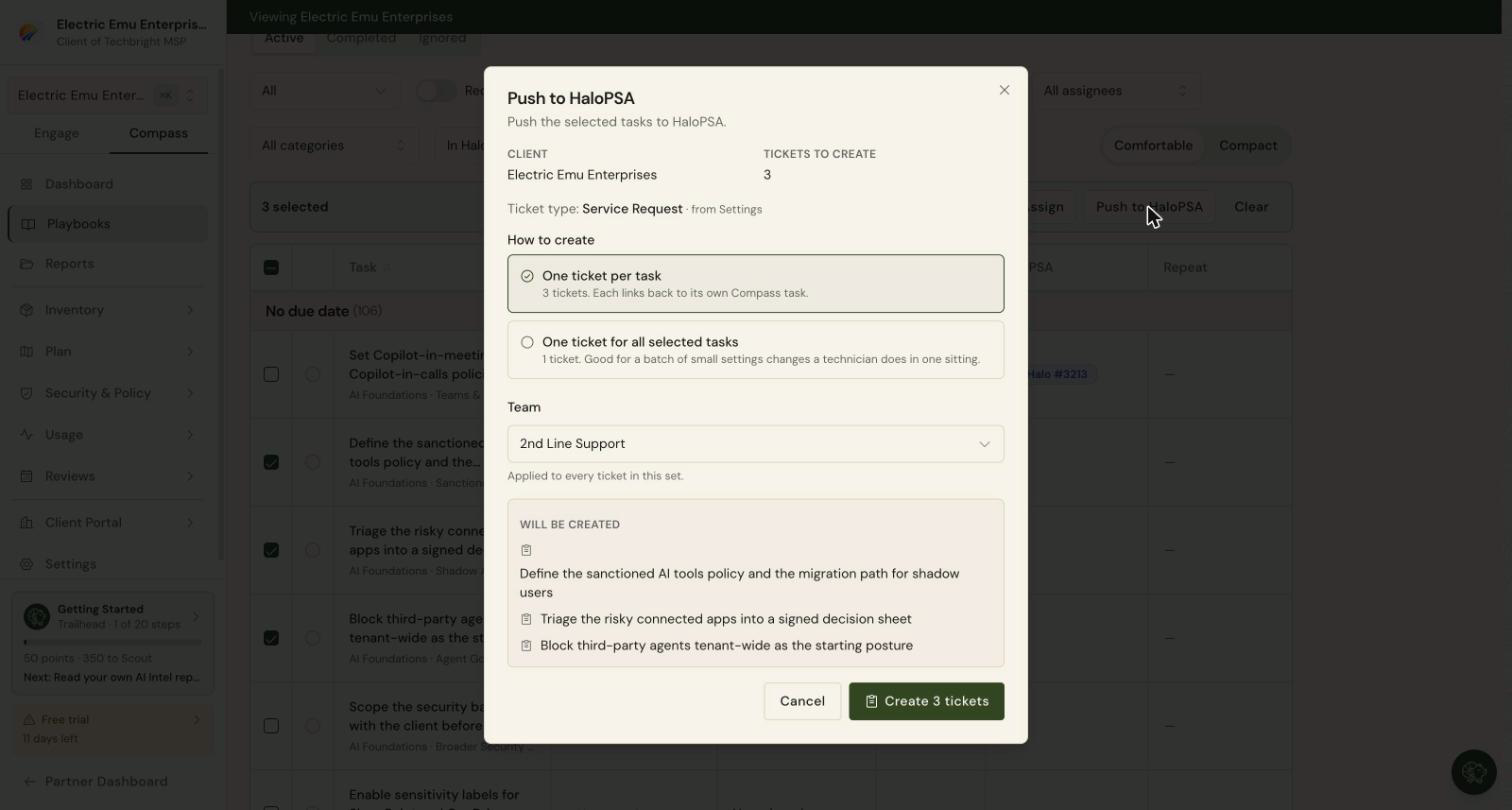
Under How to create, choose:
One ticket per task (the default). Each task becomes its own ticket and links back to its own Compass task.
One ticket for all selected tasks. One ticket covers the whole set. Lemhi prefills a Ticket summary with the playbook or phase name when every task shares one, the client name, and the task count, for example "Rollout & Adoption for Basalt Bear Ltd. (3 tasks)". You can edit it. This suits a batch of small settings changes a technician does in one sitting.
Choose a Team. It applies to every ticket in the set.
Select Create N tickets or Create 1 ticket.
Check: Each task shows its ticket chip. With one combined ticket, every task shows the same ticket number, and each task's detail names the other tasks the ticket covers.
Tasks already in HaloPSA are listed under Already in HaloPSA · Skipped, so a bulk push never creates a duplicate.
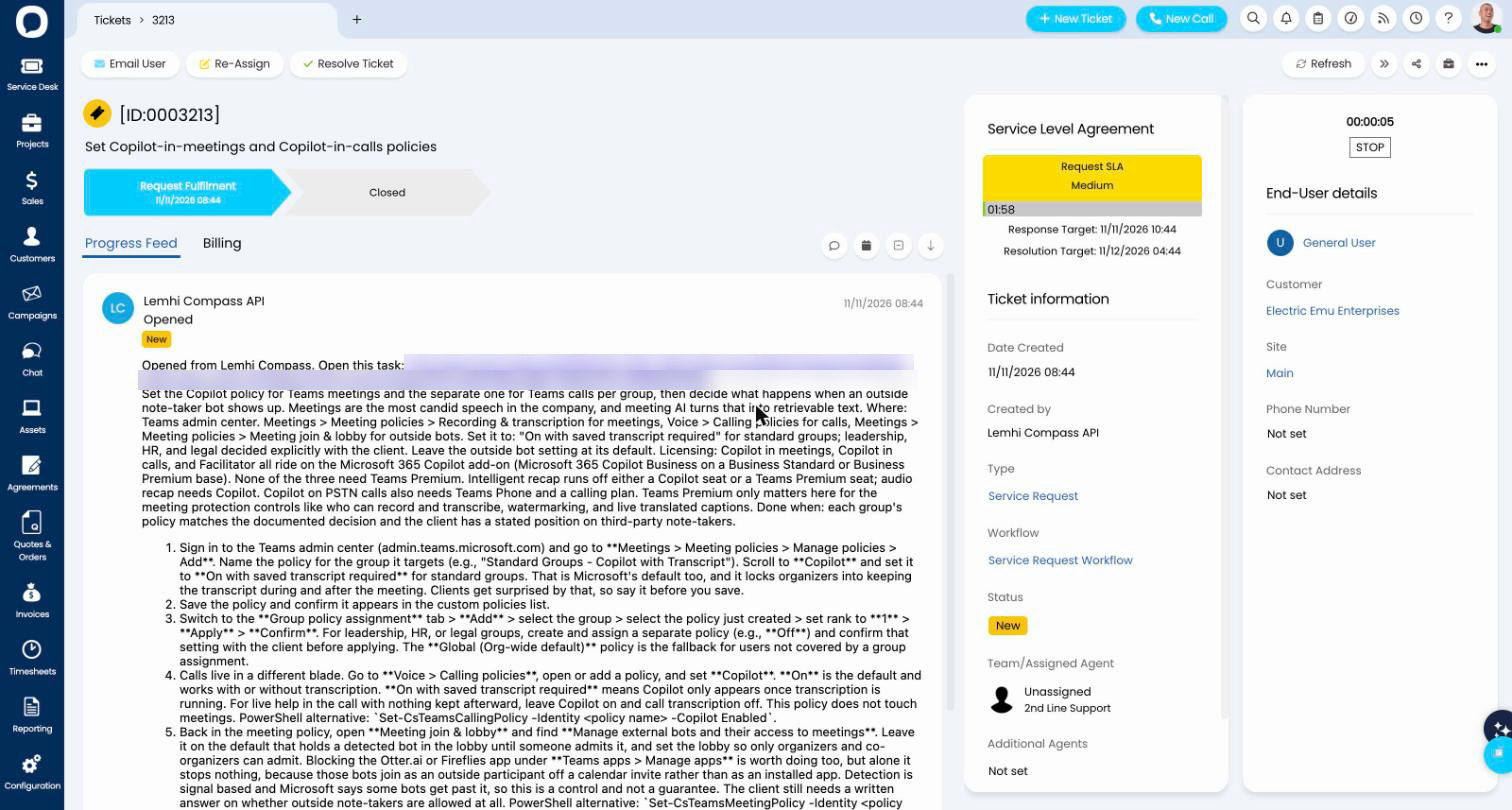
What the technician sees on the ticket
When a push fails
The task shows Push failed and Not in HaloPSA with the reason, and nothing else on the task changes. After a bulk push, a message also says how many tasks could not be pushed, with Retry failed.
Select Retry first. Retry checks HaloPSA for a ticket this push may have created and uses it if it finds one. Otherwise it creates the ticket.
Select Discard only when you are sure nothing reached HaloPSA, for example when the reason starts with "HaloPSA rejected the ticket" or "HaloPSA now requires". Discard clears the failed push from the task so you can push again to a different team, or link an existing ticket.
Do not discard after a timeout or an unexpected error. HaloPSA may have created the ticket even though Lemhi never got the reply. Discard does not check HaloPSA, so pushing the task again can create a second ticket.
When the reason names a HaloPSA setting, fix it in HaloPSA first, then select Retry. For the exact message you see, find it in HaloPSA errors and fixes.
Related
Was this helpful?
Still need help? Ask the team