Link a task to an existing ConnectWise ticket
Attach a Compass task to a ticket a technician already opened, so you do not create a second one.
Written By The Lemhi Product Team
Last updated 1 day ago
For vCIOs and account managers. Use this when a technician already opened a ticket for the work, so you do not create a second one. When you finish, the task shows that ticket's number and status.
The client must be mapped to a ConnectWise company, and the task must be active.
Open the task and select Link existing ticket.
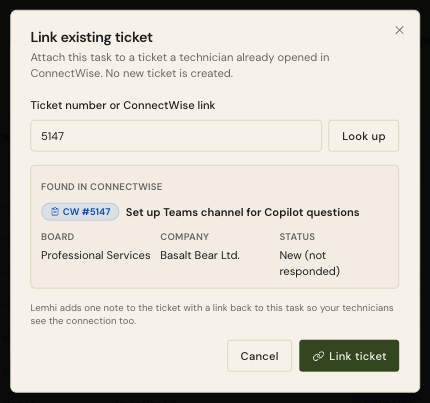
Enter the ticket number, or paste the ticket's ConnectWise link, and select Look up. Lemhi looks for a service ticket with that number first, then a project ticket.
Lemhi shows the ticket's number, summary, board, company, and current status. For a project ticket it shows the Project and Phase in place of the board. Select Link ticket.
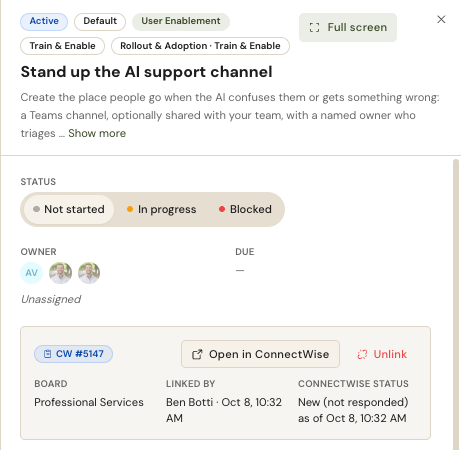
Check: The task shows the same ticket chip as a pushed task, and its ticket section shows Linked by with who linked it and when.
Lemhi adds one note to the ConnectWise ticket, "Linked to Lemhi Compass task:" with a link to the task, so technicians see the connection from their side too.
If the task shows "ConnectWise did not accept the note.", the link still worked. Check that the security role has Service Tickets Edit = All, or Project Tickets Edit = All for a project ticket.
Ticket under a different company? If the ticket belongs to a different ConnectWise company than the client is mapped to, Lemhi warns you before you link. You can still link it on purpose.
Remove a link
To remove a link, open the ticket section on the task and select Unlink. The ConnectWise ticket itself is not changed.
Related
Was this helpful?
Still need help? Ask the team