Deploy with Kaseya VSA 10
Create a per-client PowerShell script in the VSA 10 Automation Hub, run it on one device, then schedule it through an automation policy.
Written By The Lemhi Product Team
Last updated 10 days ago
For technicians on Kaseya VSA 10. When you're done, the client has its own PowerShell script in the Automation Hub, running daily through an automation policy on the client's organization.
Before you start
The client's script. In Engage, open the client, then Shadow AI Usage under Compass, then the Deployment tab. Expand Deploy with your RMM and click Copy script. It already carries this client's key, so paste it unchanged. This guide keeps one copy per client. If you'd rather keep one script, store each client's key in a client-level RMM variable and put that variable in place of the
$ClientKeyvalue. The full script and what it does: Deploy the extension with your RMM.
Create the script
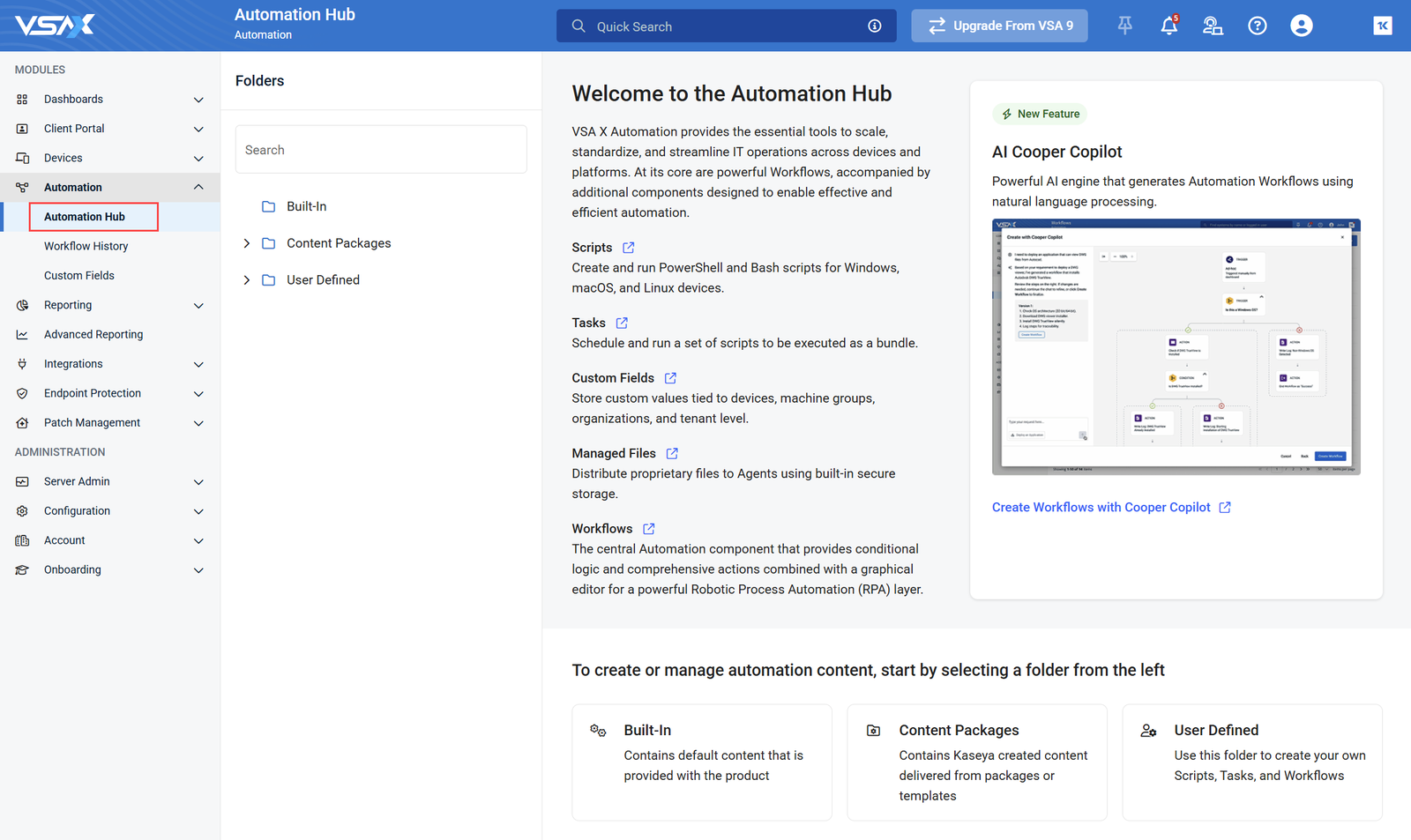
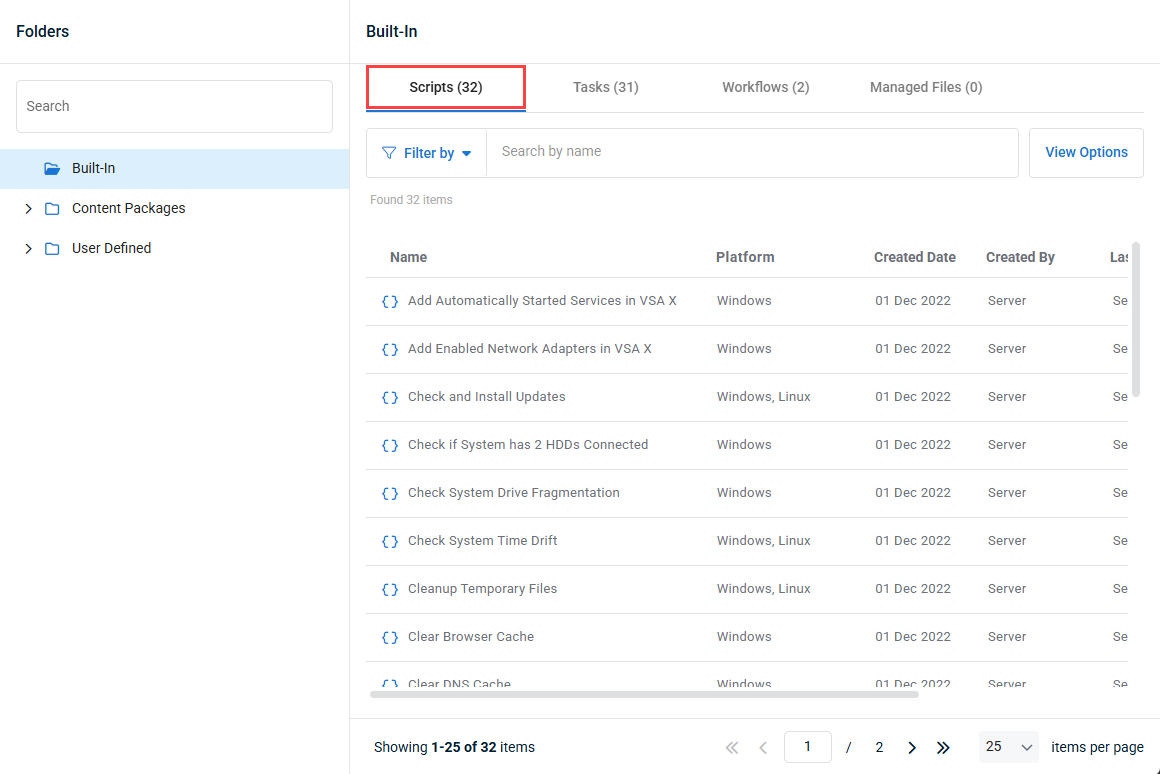
Open Automation → Automation Hub → User Defined, open a folder, go to its Scripts tab, and choose Create Script.
Set Name to
Lemhi AI Usage extension - <Client>.Set Type to PowerShell and OS to Windows.
Paste the script you copied from Engage. Don't edit it.
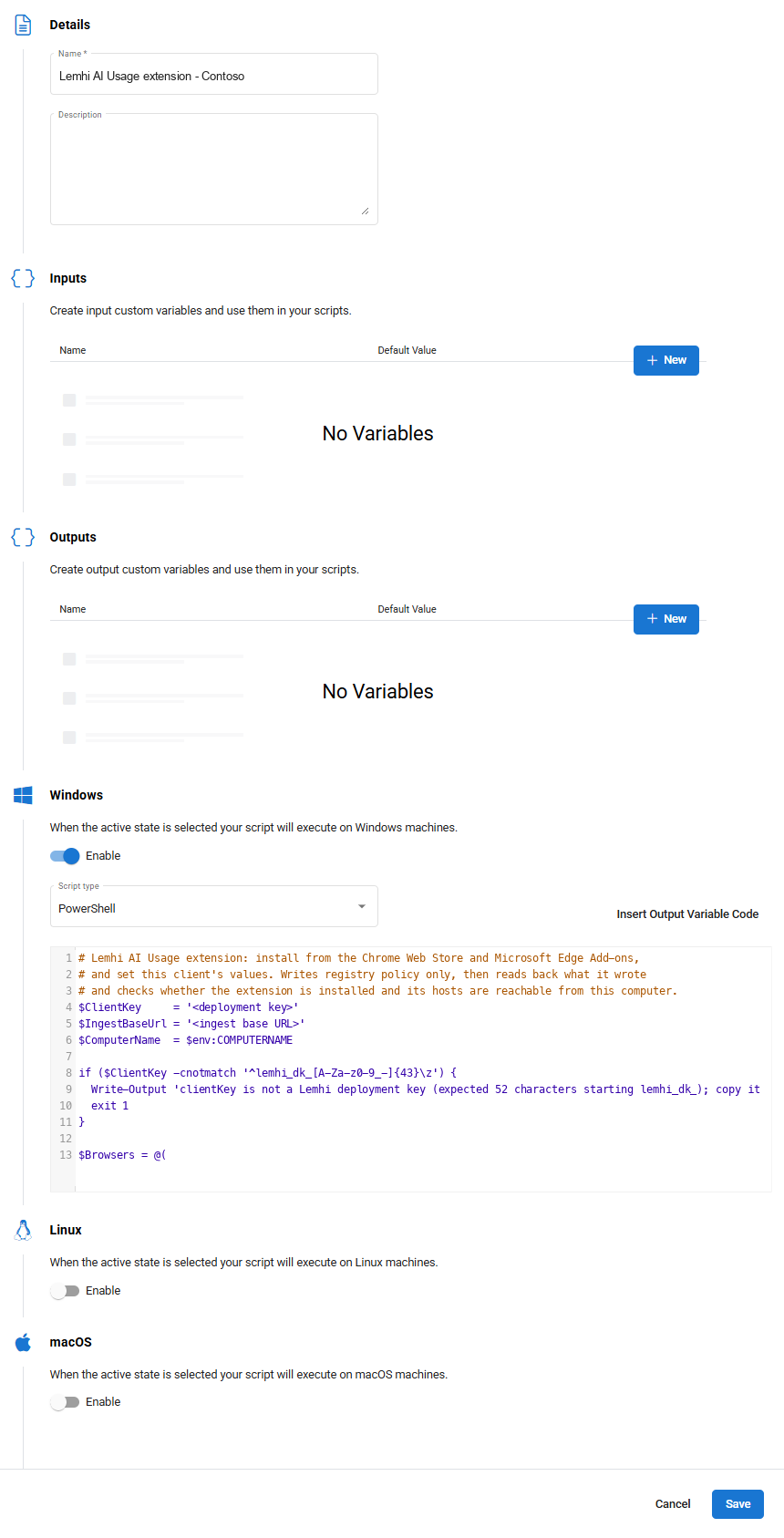
Click Save.
Reference: VSA 10 scripts.
Pilot on one computer
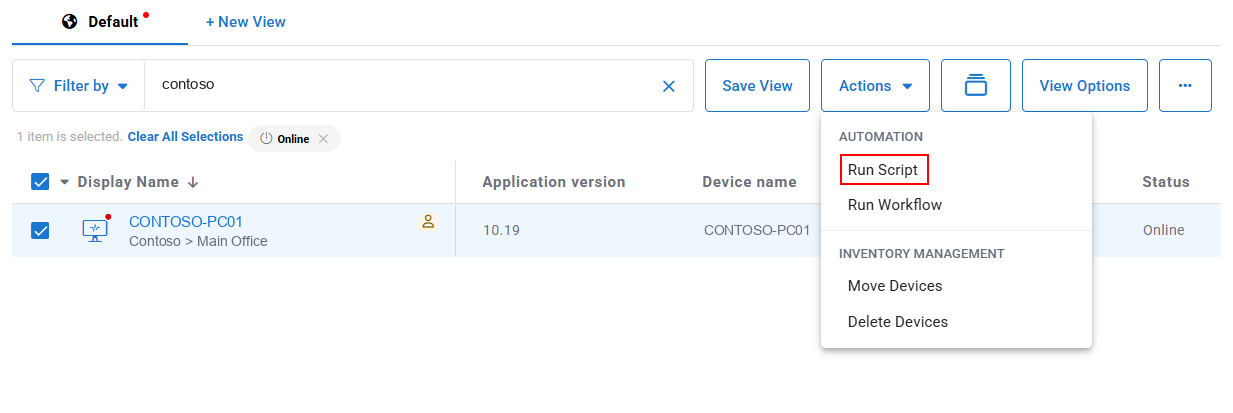
Open Devices, select one device, then Actions → Run Script, and pick the script.
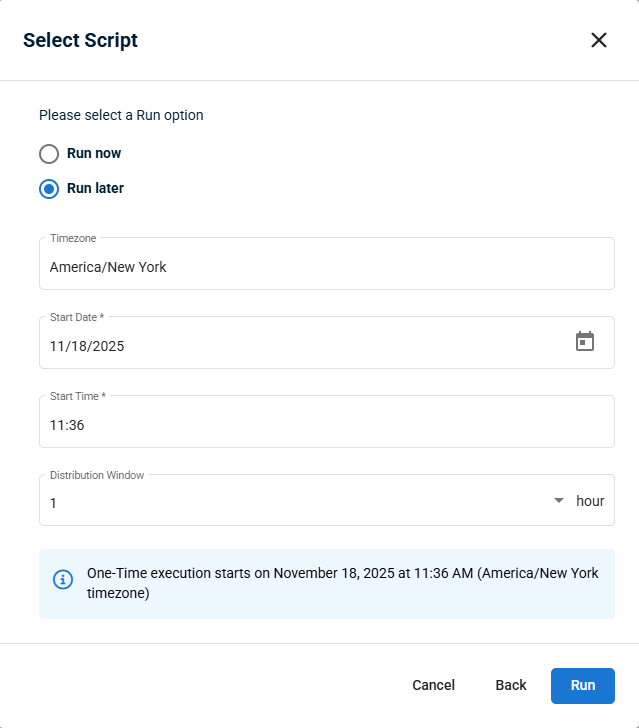
Check the run result.
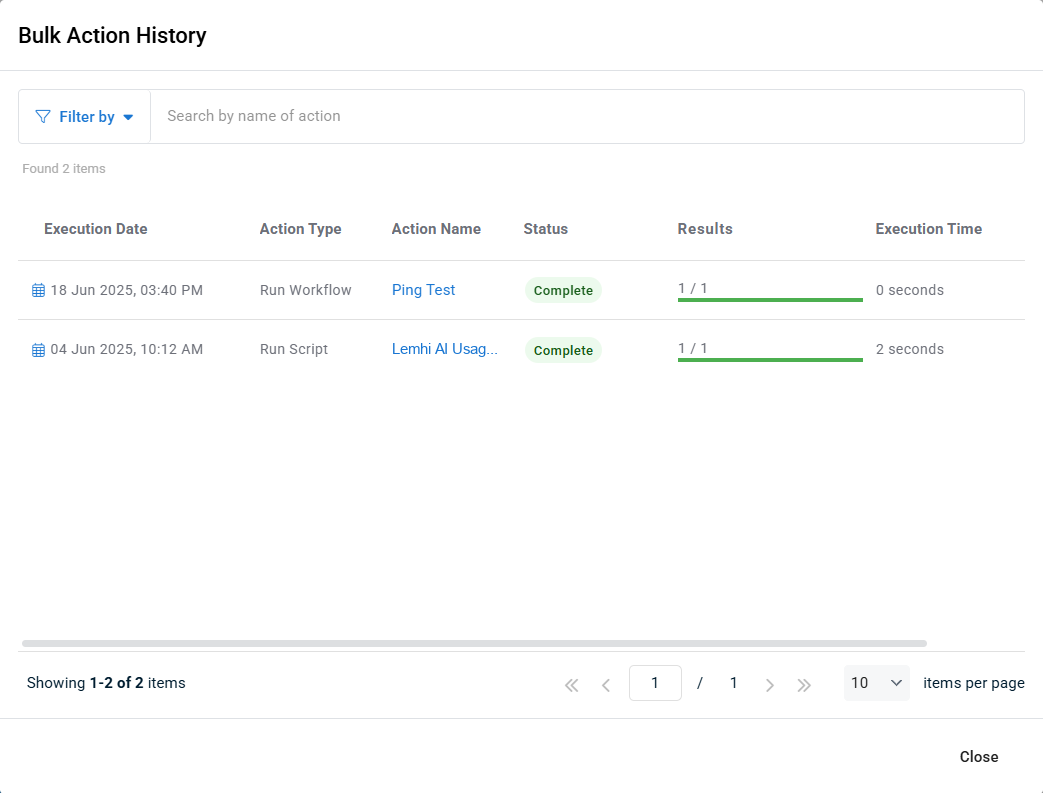
Restart the browsers on that computer.
Within a few minutes it appears on the client's Deployment tab.
"Extension not installed yet" is expected until the browser restarts. A failed run (exit code 1) means the key isn't a valid Lemhi key, usually because it was mangled in the copy, or a value didn't read back. Copy the script from Engage again and re-run. The script must run as System in 64-bit PowerShell. If the run fails with does not match what this script wrote, see Computer doesn't appear on the Deployment tab.
Schedule it on the client
Add the script to an automation policy applied to the client's organization (Windows devices), on a daily schedule. Re-runs are safe.
Rotate the key or remove
To rotate the key, regenerate it on the Deployment tab, then click Copy script again: the copied script carries the new key. Paste it over the client's script and run it on the client now. See Rotate a client's deployment key.
To remove the extension: Remove the script from the policy, create a script from the removal script, and run it on the client. See Remove the extension from a client's computers.
Related
Was this helpful?
Still need help? Ask the team