Changelog

Follow new updates and improvements to Lemhi.

Lemhi Release — Lemhi Pass, ID (Nov 2026)

What's New: November 10, 2026

Lemhi Pass release: Where Lewis first crossed the Continental Divide on August 12, 1805, and the valley below that gives the company its name.

Your view of client AI now reaches past Microsoft 365: the Lemhi browser extension shows the AI they use in the browser, Claude Visibility shows who uses Claude and what it touches, and the Lemhi MCP puts your client data inside Claude, ChatGPT, and Copilot Studio. Compass workspaces can also run the AI Business Review with client leadership inside Lemhi.

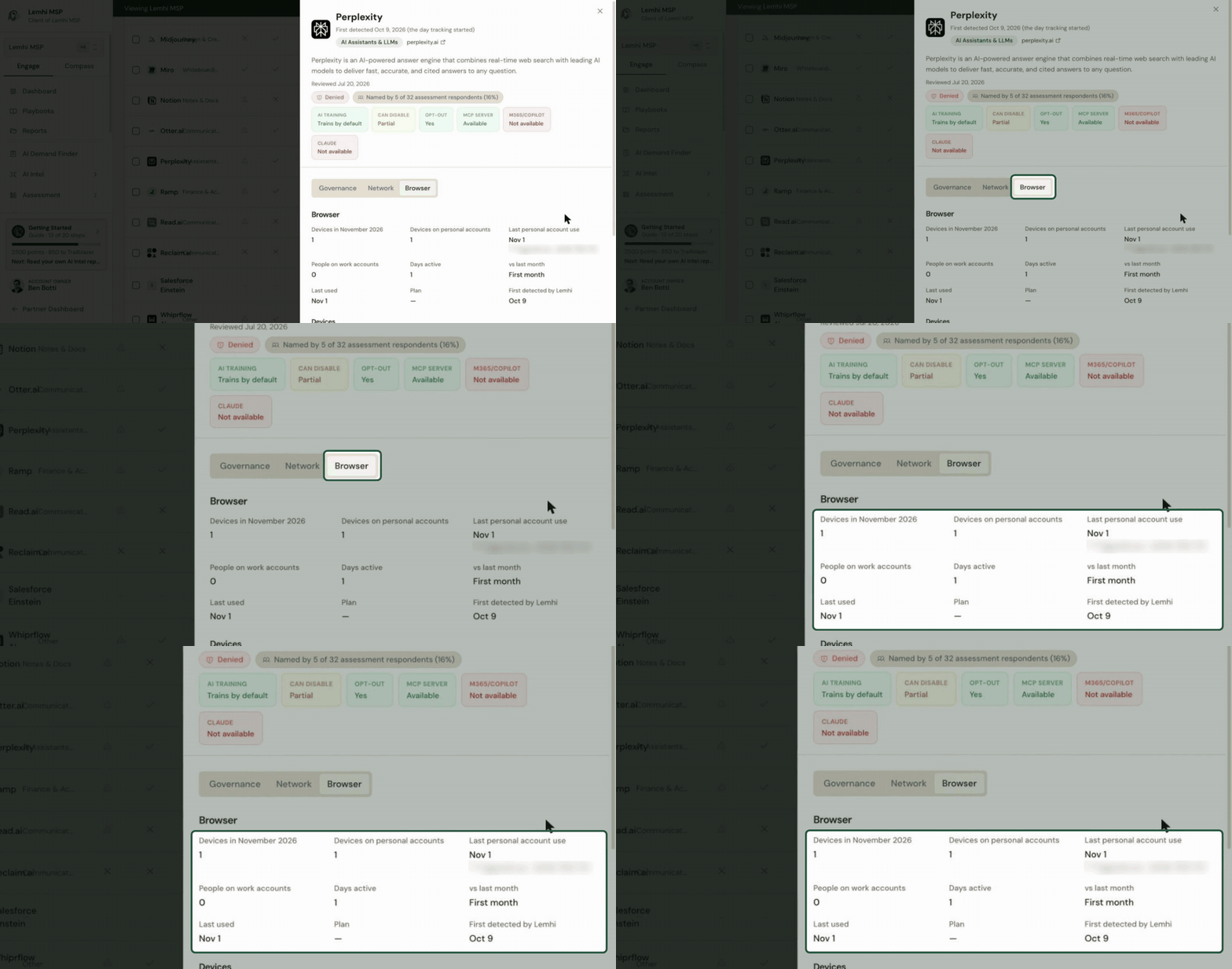
Find the Shadow AI Your Clients Use in the Browser

  • Deploy in one step: On a client's Shadow AI Usage Deployment tab, Copy script or Download script gives you the RMM PowerShell script with the client's key built in. Push it from your RMM. Every computer prints plain results (policy set, extension installed, store reachable, Lemhi reachable) and names the fix when something fails. Your techs stop chasing failures by hand.

  • Browser findings next to everything else: Every tool the Lemhi browser extension finds carries a Browser badge on the AI Tooling page, beside the Microsoft 365, Network, Intune, and ScalePad sources. Open a tool to see the devices using it, how many use a personal account, the people on work accounts, days active, and the change from last month. When you raise personal accounts with the client, you now have their own numbers.
Know Who Uses Claude and What It Touches

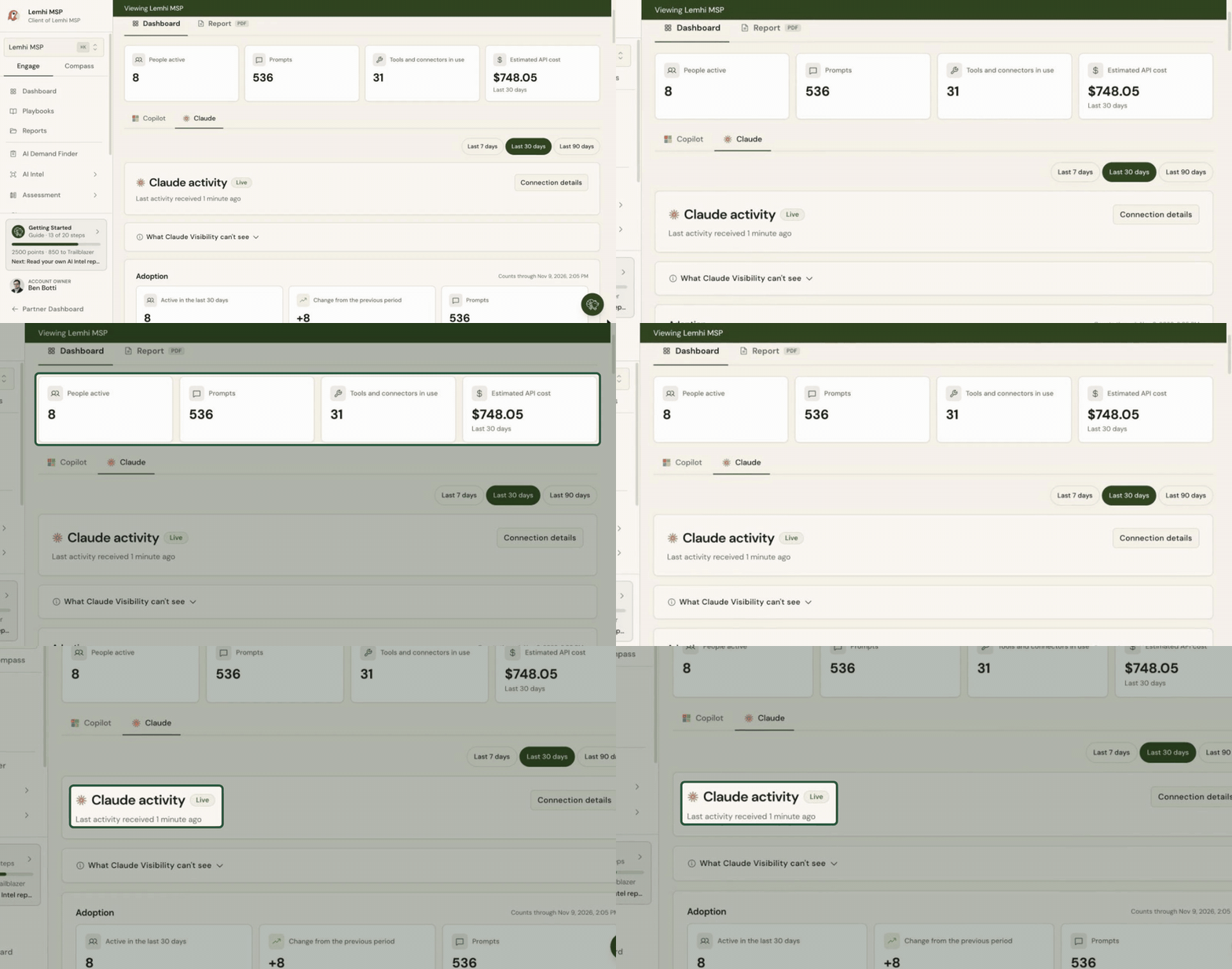
  • On for every partner: Claude Visibility is now on for every partner. Connect a client's Claude Team or Enterprise organization via OpenTelemetry from the Claude tab in AI Observability and see who uses Claude, how often, which models, which tools and connectors it touches, and what that use would cost at API prices.

  • A setup link for the client's Claude admin: Create setup link gives you a page in your branding that walks the client's Claude admin through setup, with a copy button for every value and a plain explanation of what Lemhi collects instead of raw settings in an email. Regenerate or revoke the connection and the old link stops working.

  • Know when it breaks: The client list flags any client whose Claude connection stops reporting, so you can fix it before the next report. Connection history shows which connections came from a setup link.
Brief Yourself on Any Client From Claude, ChatGPT, or Copilot Studio

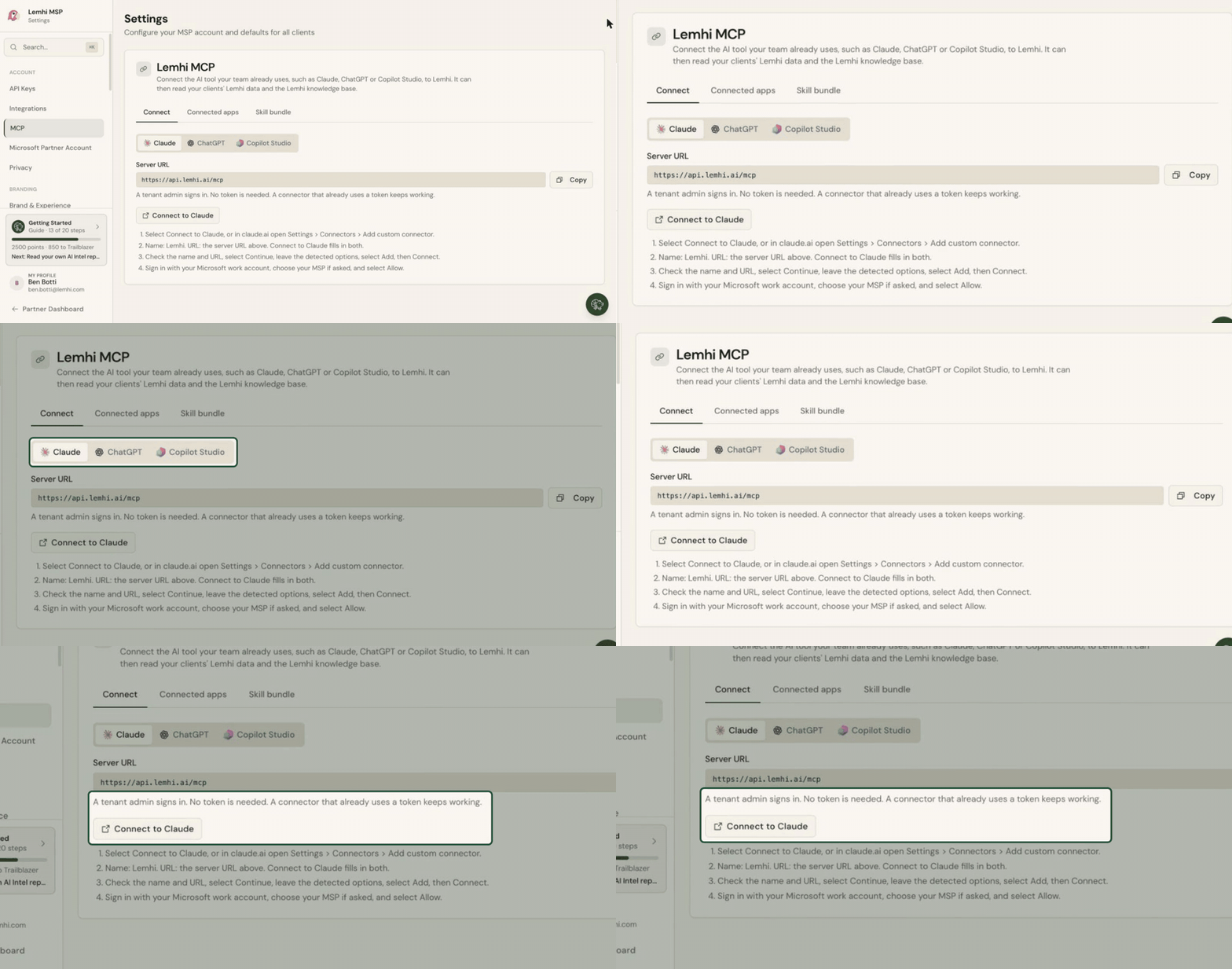
  • Your client data in your AI tool: The Lemhi MCP answers questions about your clients: their AI tools, use cases, latest AI Intel report, Compass summary, and open tasks. Ask "Brief me on Acme Dental" before a call and get an answer built from Lemhi data.

  • Sign in, no token to copy: Connect from Claude, ChatGPT, or Microsoft Copilot Studio by signing in with your Lemhi account on a branded consent page. The Lemhi MCP page in Settings has step-by-step tabs for each.

  • Stay in control: Connected apps lists every app that signed in, who connected it, and when it was last active. Revoke one and its access ends right away. Ready-made Lemhi skills for each tool download from the Skill bundle tab, so your team has a starting point.
Run the AI Business Review Without Building Slides

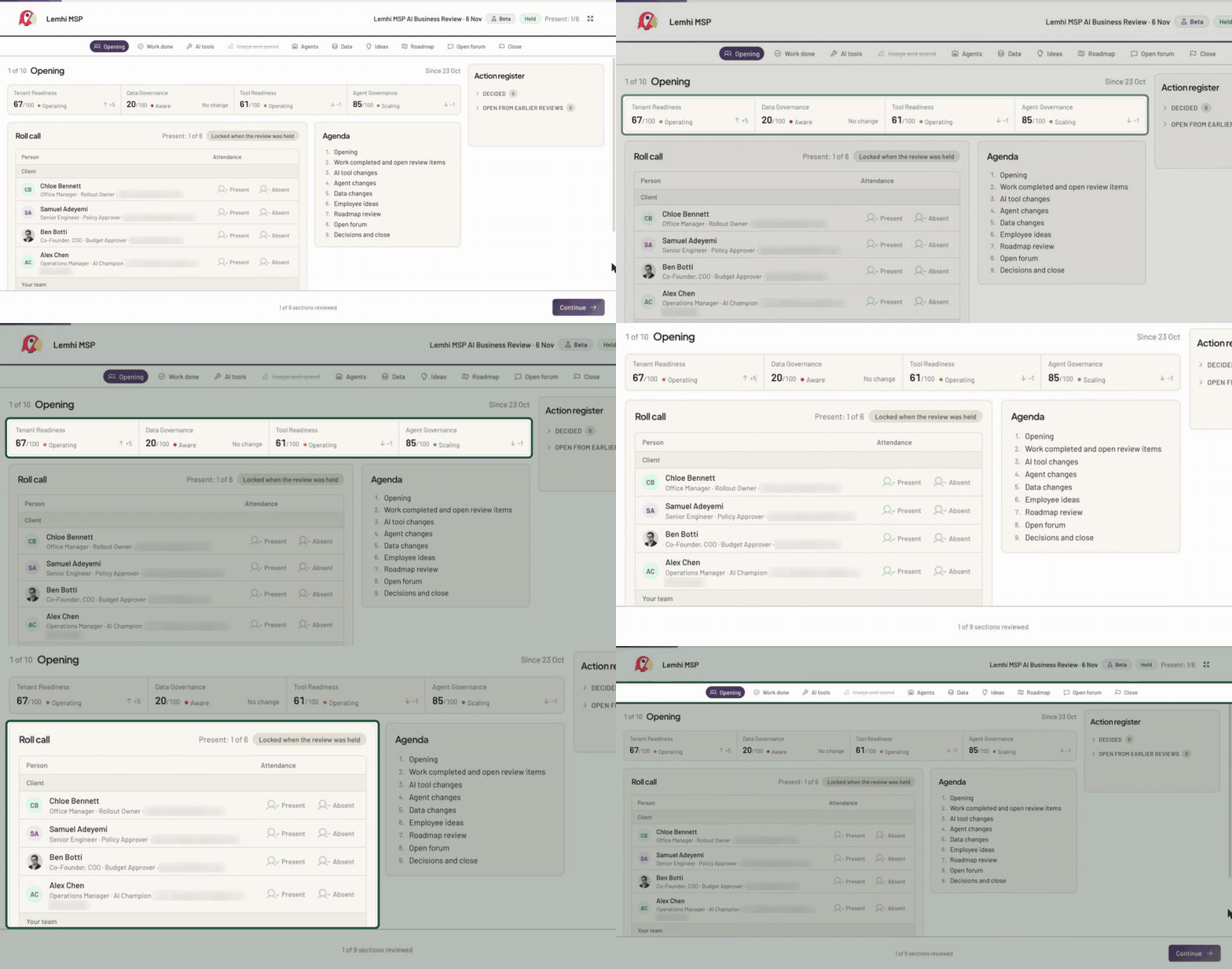
  • One walk-through, no deck: AI Business Review (beta, in Compass) runs your monthly or quarterly meeting with the client's leadership. Step through tools, agents, data, employee ideas, and the roadmap, each showing what changed since the last review, and take roll of who is in the room.

  • Every decision becomes a task: One click turns a decision (approve a tool, retire an agent, review a new site) into a Compass task tied to the people present. The Action register keeps this review's tasks and open ones from earlier reviews in view until they're done.

  • A record you can hand over: Mark the review held and download a branded summary PDF. Any tool, agent, or site shows its decision history across reviews, so you can answer "who approved this?"
Bug Fixes and Other Improvements

  • Marketing Tools has an Assets gallery with the AI Journey one-pager and Sample Reports for a fictional client

  • The client Employees tab opens a profile side panel for each employee

  • AI Plan Builder adds a Future step before Roadmap on how urgently the client wants each level of AI

  • AI Intel reports show a clickable source next to every claim that has one

  • Reports show correct Executive Summary dates, framework names, Data Governance site counts, and value and effort chart ranges

  • You get an email, with the fix named, when a client starts refusing Lemhi's sign-in or the cause changes

  • Employee sync no longer creates duplicates or false group failures, and explains when a client blocks reads

  • AI Intel accepts more company websites and explains failures accurately

  • AI Observability no longer errors on your internal client before Partner Connect is set up

  • Also: the workshop deck adds an appendix of every tool found; AI Intel links each process to a use case; a new sign-in page; the new ConnectWise logo

Lemhi Release — Camp Fortunate, MT (Oct 30, 2026)

What's New: October 30, 2026

Camp Fortunate release: the camp where Clark's party caught up with Lewis in August 1805, Sacagawea recognized her brother, and the Corps traded for the horses that would carry them over the mountains.

This release adds two marketing tools for finding AI work: one on your website for businesses that aren't clients yet, and one link you send to every current client. ScalePad is now open to every partner, you can tailor the assessment to each client, and new reports show leadership where they stand and how far they've come.

Turn Your Website and Client List Into an AI Pipeline

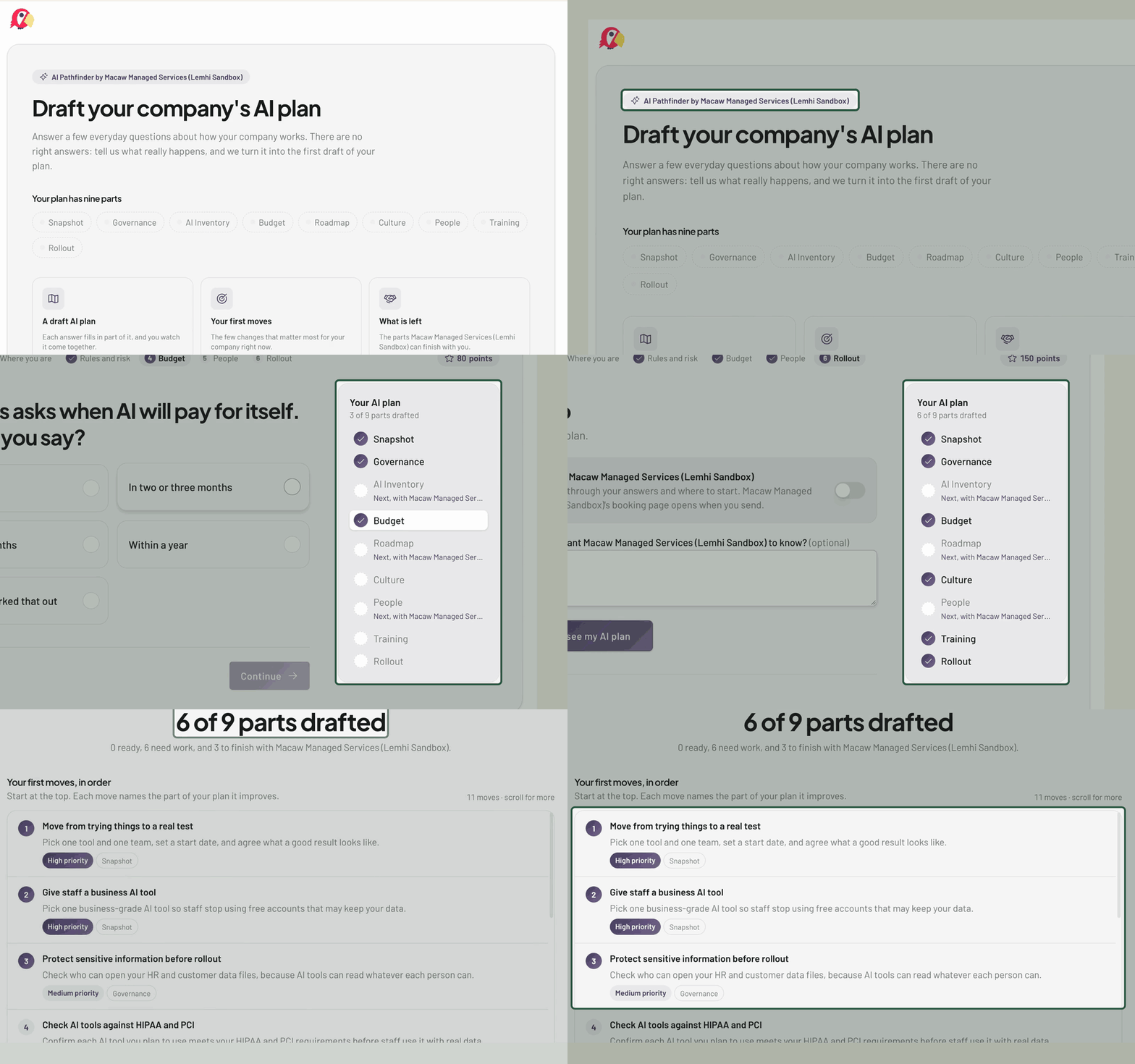
  • AI Pathfinder: Put an "Is My Business Ready for AI?" button on your website. A visitor answers short readiness questions on a page in your brand (no Lemhi branding), watches a draft AI plan fill in, and finishes with ranked first moves, the areas you can help with, and your booking link. Their answers start that company's AI Plan Builder, so your first meeting starts with a draft plan in hand.

  • AI Demand Finder: Send one link to every client to see where each stands on AI. Answers land on that client's page, named tools join their tool inventory, and anyone who asks to talk goes to your Lead Gen notification list. You see who started and how far they got, so you know which clients to call first.

  • One home for both: The new Marketing Tools sidebar group holds both tools and Lead Gen, each with a dashboard, shareable links, a ready-to-send email, and a submissions table.

ScalePad, Open to Every Partner

  • Connect it yourself: The ScalePad card is under Settings, Integrations for every partner. Add your key, map clients automatically, and AI Roadmap initiatives stay in sync from then on.

  • AI progress in every QBR: The "In ScalePad" strip on Compass Overview writes the client's AI progress summary into their next ScalePad review meeting. After each QBR, the next summary starts automatically.

  • Reports where the meeting is: Send a client report straight to a ScalePad meeting from their Reports page.

Shape the AI Assessment to Each Client

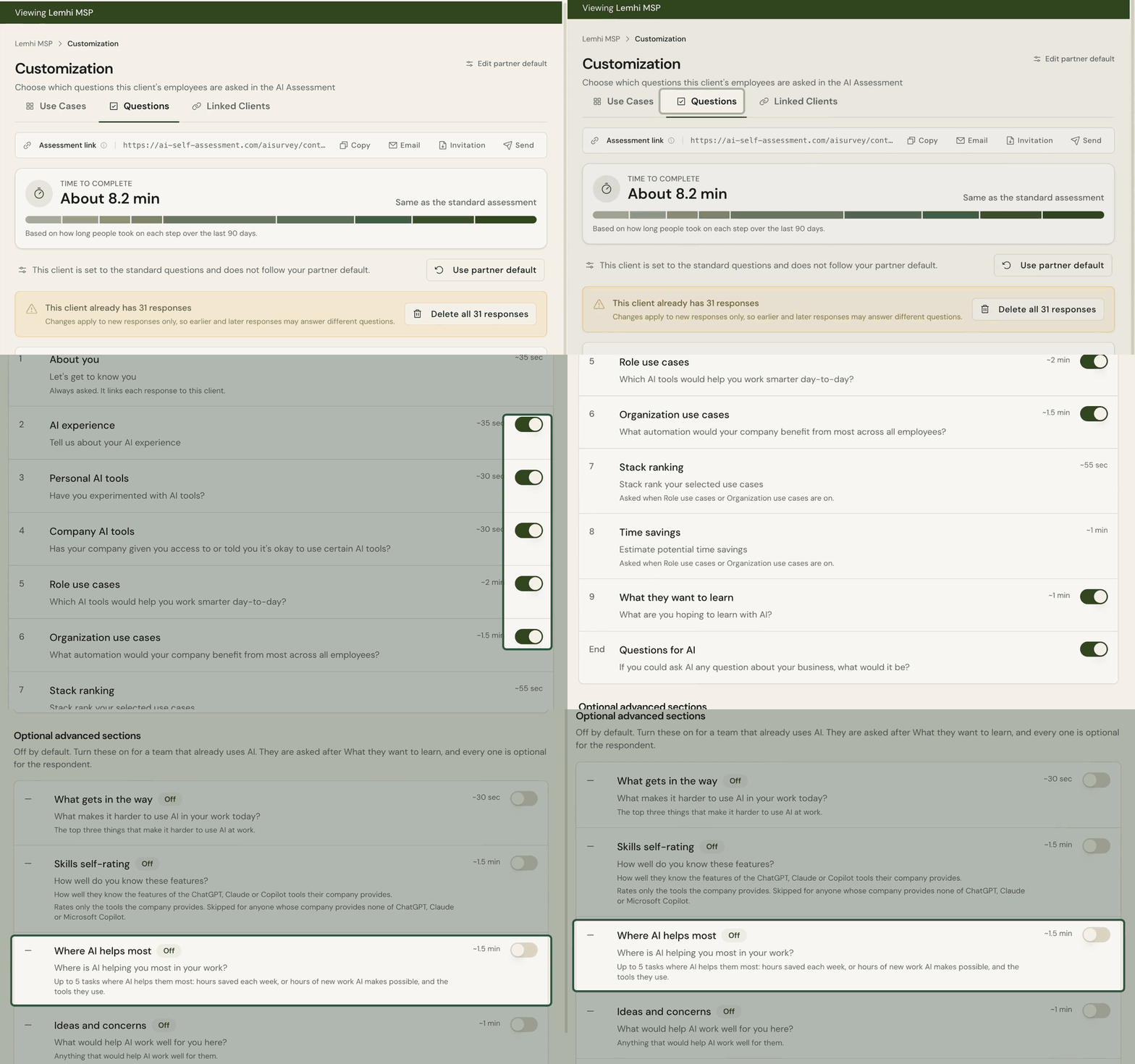
  • Choose the questions: AI Assessment, Customization (formerly Use Cases) has a Questions tab where you turn survey questions on or off per client. Four advanced sections, off by default, go deeper for teams already using AI heavily.

  • Measure time saved and new work: The optional "Where AI helps you most" section asks each person for up to five tasks, the hours AI saves or the new work it makes possible, and the tools they use. Export to CSV for the monthly numbers leadership asks for.

  • One workshop for a group of companies: Link sister companies to a parent client. The parent's workshop deck and deliverable reports combine everyone's answers, and each company keeps its own reports.

  • Reach the right leader: The leader page explains the assessment, suggests who should get it, and shows sample results. Use Get link to share it yourself, or preview the email when your mail app doesn't open.

Show Leadership Where They Stand

  • Executive Readiness Scorecard: A short report for client executives, under AI Strategy & Policy. An 8-axis radar scores employee confidence, adoption, AI plan, policy, tenant readiness, data governance, tool readiness, and agent governance, each with a one-line reason, then a 90-day roadmap from the client's use cases and AI Plan. Unmeasured areas show as pending and don't count as zero.

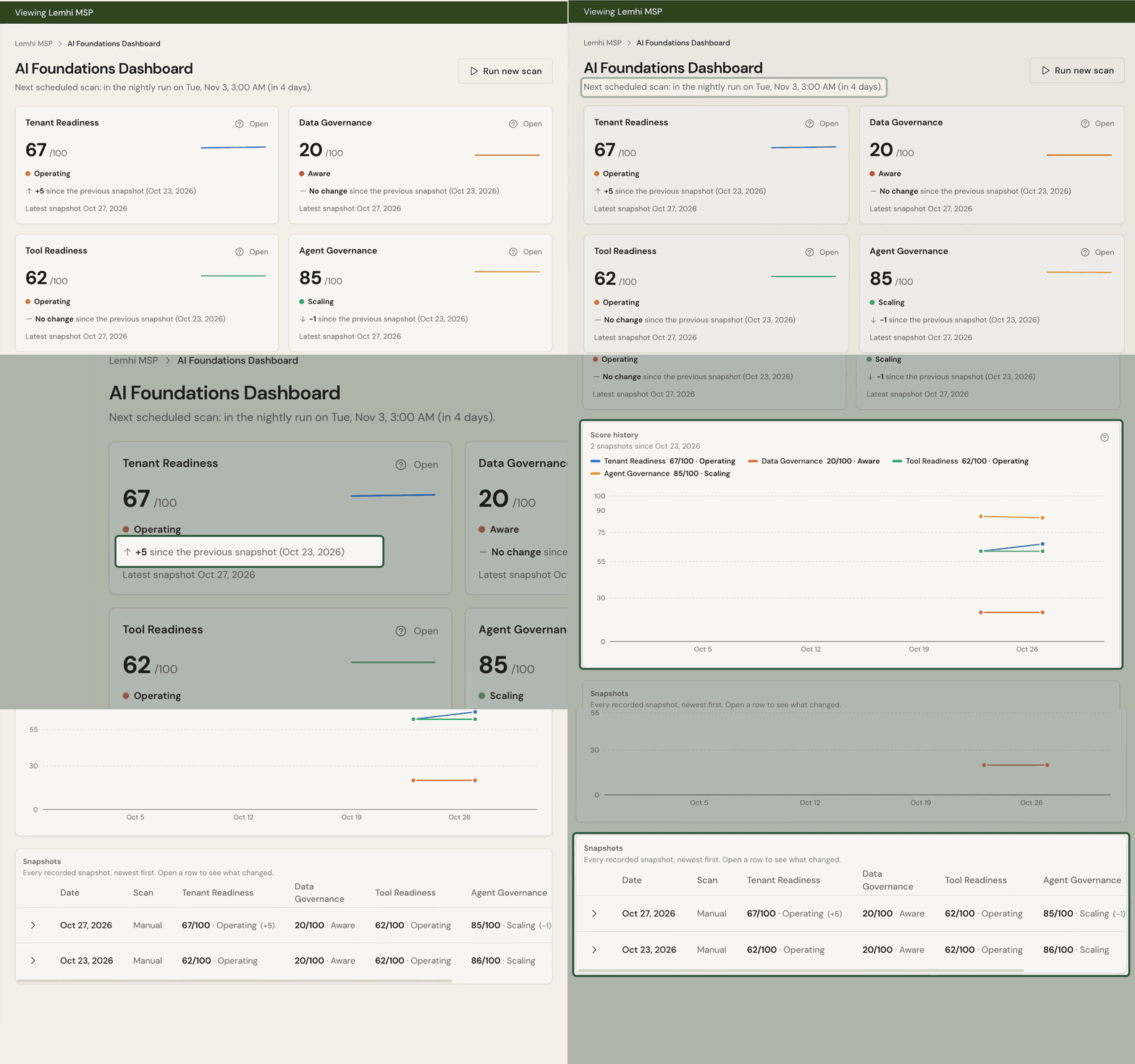
  • Score history: Lemhi records each client's tenant readiness, data, tool, and agent governance scores after every Tenant Assessment scan, and rescans connected clients on a schedule. The new AI Foundations Dashboard shows each score's level, last-month change, and trend, with a table of which controls started failing or got fixed. Tenant Assessment, AI Data Governance, and AI Tooling each chart their own score's history.

  • Ready for the workshop: The Microsoft 365 tenant scan starts on its own when a client's first employee completes the AI Assessment, so the deck's security slide has real results when you present.

Bug Fixes and Other Improvements

  • Clicking a Copilot agent in Compass opens a drawer with Usage, Configuration, and Deployment tabs

  • The client dashboard opens on a Client Journey guide (Baseline, Deliver, Maintain) with summary rows in journey order

  • Finish Partner Connect in a private window with a single-use link, without signing in to Lemhi twice

  • Invite several teammates at once at a chosen role from Add from your team

  • The AI AUP Builder's completed screen is simpler and adds a policy PDF and an Employee Guide PDF

  • The AI Plan is now the AI Planner Results tab; the Executive Summary and Prompt Library match the other reports

  • Apply more tasks from a playbook already on a client's board

  • AI App Rules marks your own MSP tools, lists them first, and counts every app selected in bulk actions

  • Every process AI Intel finds produces at least one client-specific use case

  • The workshop deck adds two "try it live" slides with an example prompt and output

  • Use Case Insights shows a department high, low, and average chart on the cover and builds title groups in place

  • The Clients table adds a Next step column and fits long names; the settings cog opens a slim side panel

  • Client sign-in errors name the cause and fix (Conditional Access, risky user, MFA, GDAP group, permissions, revoked sign-in), with Check again

  • Network discovery recovers from Microsoft throttling automatically and no longer guesses at licensing from missing data

  • Data Governance active-user counts are back, and SharePoint checks use the client's current address

  • The Copilot Readiness Global Secure Access finding no longer shows Not Assessed on every scan

  • Lead Gen and Partner Connect emails reach your admins again

  • The trial banner, countdown, and warning emails agree on when a trial ends

  • Also: report pages with no client data are left out of exports; shared and service accounts are hidden from employee pickers; the client dashboard loads faster; Tenant Assessment and the workshop deck describe gaps instead of pass/fail; your logo sizes to its shape on client pages; the sidebar logo links back to your dashboard; buttons show the pointer cursor again; the workshop deck no longer shows headcount;

Lemhi Release — Beaverhead Rock, MT (Oct 16, 2026)

What's New: October 16, 2026

Beaverhead Rock release: the rock Sacagawea recognized in August 1805, telling the Corps her people were close and the Continental Divide was within reach.

You now see the AI your clients use outside of just M365 via cloud connectivity (MS Defender for Cloud Apps) and installed inventory (Intune), and make each app decision once for every client. Copilot agents get a new governance view you can report from, and the workshop ends with even more deliverables in hand.

Find the Shadow AI Your Clients Use Outside Microsoft 365

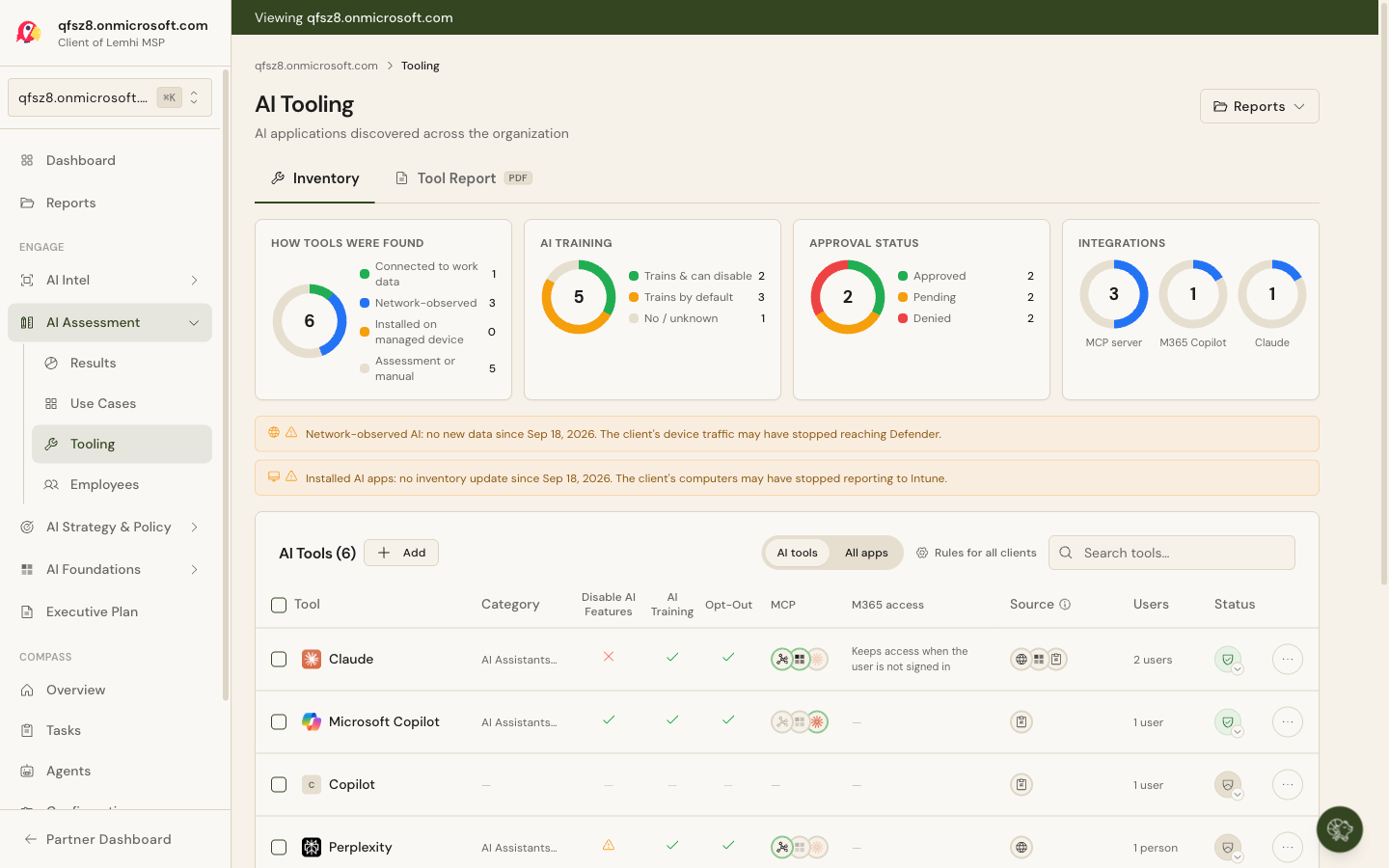
  • Network and installed apps: The AI Tooling Inventory shows AI services a client's managed computers reached (from Microsoft Defender for Cloud Apps) and AI desktop apps installed on company-owned Windows computers (from Intune). Each tool gets one row, badged by every source that found it, and each badge says what it can and cannot prove. Reconnect Partner Connect once to turn on network discovery.

  • Know what's missing, and why: A status line per source says whether it's on, waiting for first data, or not licensed for that client, and "Not licensed" opens a licensing conversation. The AI Tool Report labels each finding by source and shows a First detected date, so every claim you make to the client has a source behind it.

  • Plain words for connected apps: Every Microsoft 365 app on the Tooling page says what it can reach ("Can read and send mail · Can read files"), and that access feeds the tool risk score. Client Configuration shows whether employees can approve third-party apps themselves, which is how most unreviewed AI apps get in.

  • Decide once for every client: AI App Rules, under Settings, lists every AI app found across your clients. Mark one Approved, Denied, or hidden from reports, and the rule applies wherever it turns up next. On a client's Tooling page, select many tools at once to set approval or hide them.

Govern Every Copilot Agent Your Clients Run

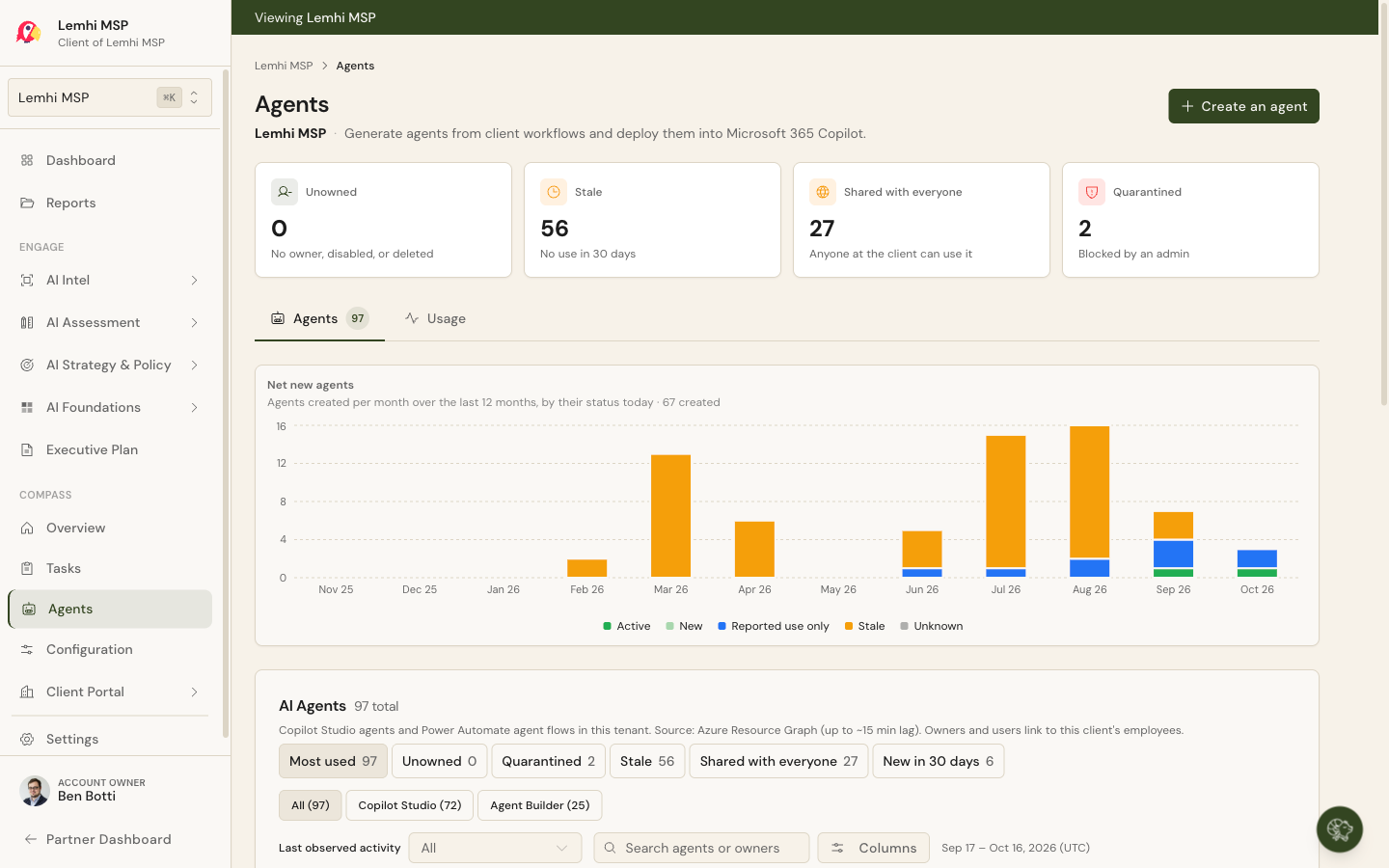
  • Governance at a glance: Compass, Agents opens on tiles for Unowned, Stale, Shared with everyone, and Quarantined agents, then lists each agent with its owner (linked to the employee), status, usage, and who it's exposed to. A monthly chart of new agents shows sprawl before the client notices it.

  • IT-built versus employee-built: Filter by All, Copilot Studio, or Agent Builder to split what IT built from what employees made themselves.

  • Usage you can report safely: Agent Activity, now on for every connected client, ranks agents by users over 7 or 30 days and lists each user's agent count and last activity. It reads the client's Microsoft 365 audit log, never conversation content, so you can report usage without exposing what anyone typed.

Run the Workshop, Hand Over the Deliverables

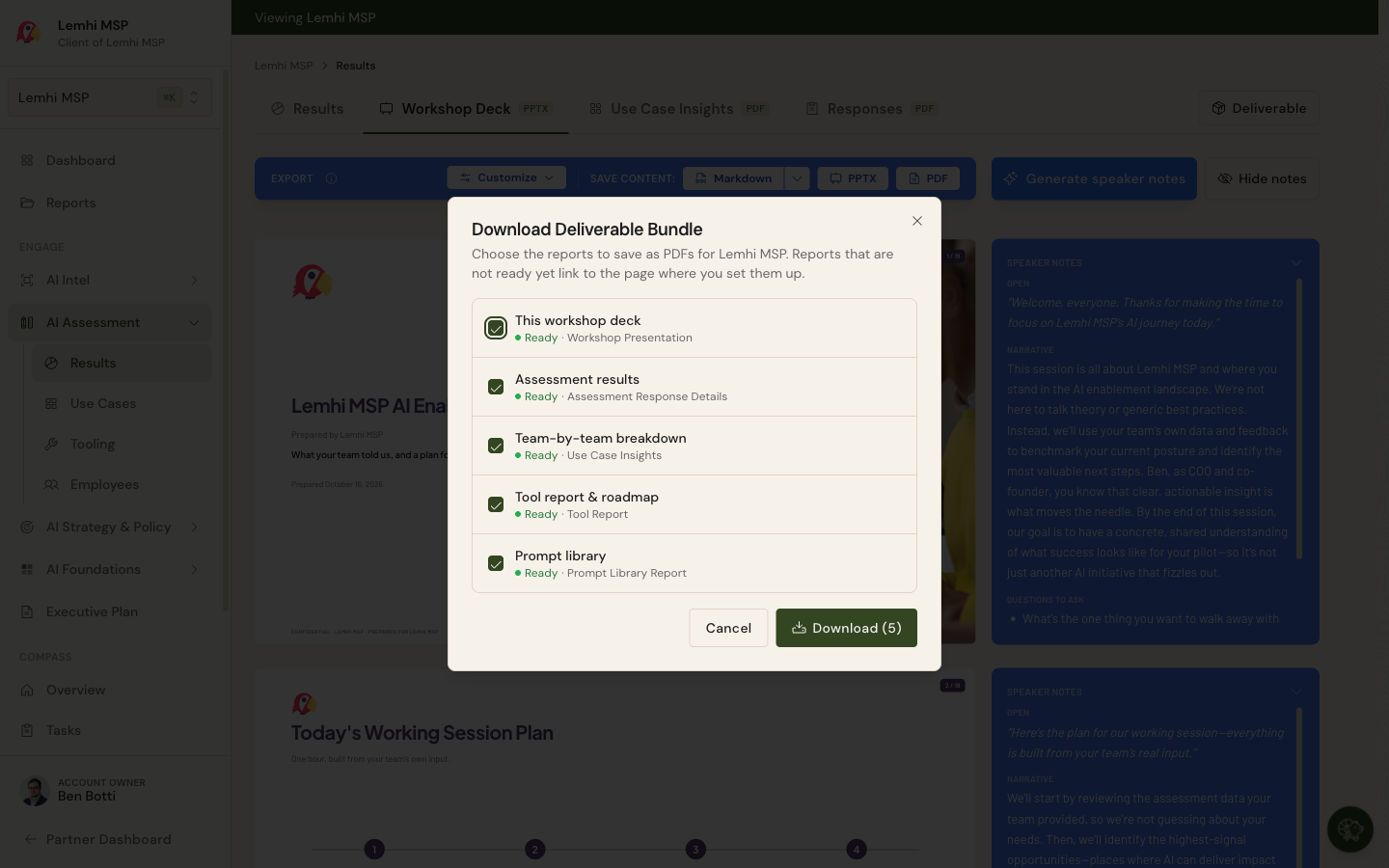
  • One bundle after the workshop: The Deliverable button on the Workshop Deck tab packages the five post-workshop reports as PDFs in one pass. A report that isn't ready yet links to where you prepare it.

  • Anyone on your team can present: Presenter "?" buttons explain what each part of the deck shows and where its data comes from. They appear on screen only, never in the PDF or PowerPoint.

  • Interview guides for each process: The Processes tab under AI Intel is out of Beta and shows each process's evidence types, with a filter. The new Process Review report builds a printable 30 to 60 minute interview guide per process: who to interview (named from the client's survey respondents), an opening script, timed questions, what to listen for, and documents to request.

Coming Soon

  • ScalePad integration: Connect ScalePad, map your clients automatically, keep AI Roadmap initiatives in sync, write the QBR note to the client's next review meeting, and send client reports straight to a ScalePad meeting.

Bug Fixes and Other Improvements

  • The Copilot Readiness scan is rebuilt finding by finding across Entra, Defender, Purview, and Intune, with Not Assessed replacing false passes and gaps, and you can open any past scan from the scanner page

  • A rejected Partner Connect sign-in shows a banner on every screen naming the cause, with Reconnect and Check again

  • When an agent can't be created, the Agents Library names the account, the cause, and the fix instead of a retry that can't work

  • Brand & Experience adds advanced typography, corner, button, and heading styles, with a preview built from real components

  • Dashboard tabs (My Clients, My Todos, All Clients, Portfolio Dashboard, Team Performance) replace the separate Clients page

  • For a client with no Microsoft 365 employees, ask a leader by email to send the assessment

  • AI Intel follows a website that redirects to a renamed domain, names the address to enter when it can't, and stops on parked domains

  • ConnectWise PSA is on for every Compass workspace, with no separate switch

  • Download several of a client's reports as PDFs in one pass from the Reports page

  • Set up to three portal link tiles once, under Settings, Client Portal Links, for every client's portal

  • A help button on every page opens Learn chat, which now handles follow-ups and questions about your own portfolio

  • Search any page from the sidebar with ⌘K or Ctrl+K; Left and Right arrows move between the pages and clients columns

  • The onboarding wizard takes multiple roles, skips the invitation email, no longer waits on the GDAP import, and accepts domain-only prospects

  • MSP dashboards show hours and working capacity instead of dollar figures, matching the client views

  • The Public API reads a client's latest AI Intel report, and every documented endpoint has examples and rate limits

  • GDAP link errors name the security group and account to fix; an expired relationship shows Access ended, with a 30-day warning

  • Monthly Copilot activity and the SharePoint site scan work again for GDAP clients; Data Governance keeps loaded counts when one Microsoft report fails

  • The workshop deck's Assessment Overview box and "How It Could Work" slide fill in reliably, and identical scores no longer show a gap bracket

  • Also: clients imported from your GDAP list sync their employees right away; dashboard client names open in a new tab; the Lead Gen embed can hide its heading; Client View shows which client you're viewing with one click back; your Internal client fills in its Microsoft data after Partner Connect; long source titles fit their cards in the sales briefing PDF; Integrations logos read in dark mode; the Getting Started row no longer jumps; report covers no longer print the client's web domain; ConnectWise lists only active companies

Earlier updates