Deploy the extension with Microsoft Intune
Force-install the extension with a settings catalog profile and write the client's values with a platform script.
Written By The Lemhi Product Team
Last updated 10 days ago
For clients whose Windows computers are enrolled in Intune. Work in the client's Intune tenant (through GDAP, or Lighthouse if you use it). When you're done, the client has a settings catalog profile that force-installs the Lemhi AI Usage extension and a platform script that writes the client's three values. The settings catalog has no setting for an extension's managed configuration, so the values are written by a script.
Before you start
Access to the client in Engage.
A device group holding the client's Windows computers.
Get the script from Engage
In Engage, open the client. In the left menu under Compass, open Shadow AI Usage, then the Deployment tab.
Click Deploy with Intune to expand it, then click Copy script on the platform script.
The copied script already carries this client's deployment key, so you paste it as is. That makes it a per-client script: one saved copy per client, never shared between clients.
1. Settings catalog profile (force-install)
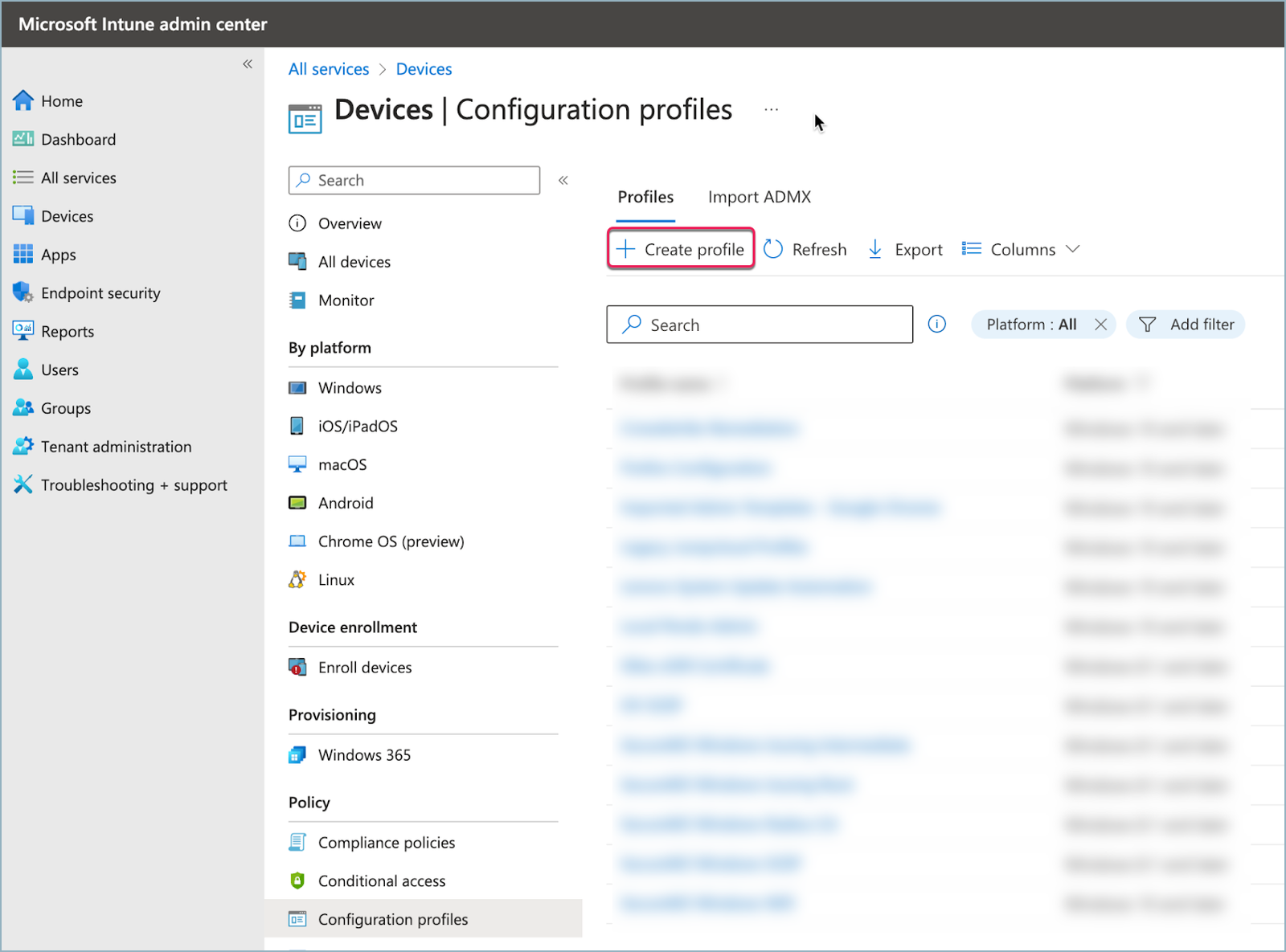
Devices → Configuration → Create → New policy.
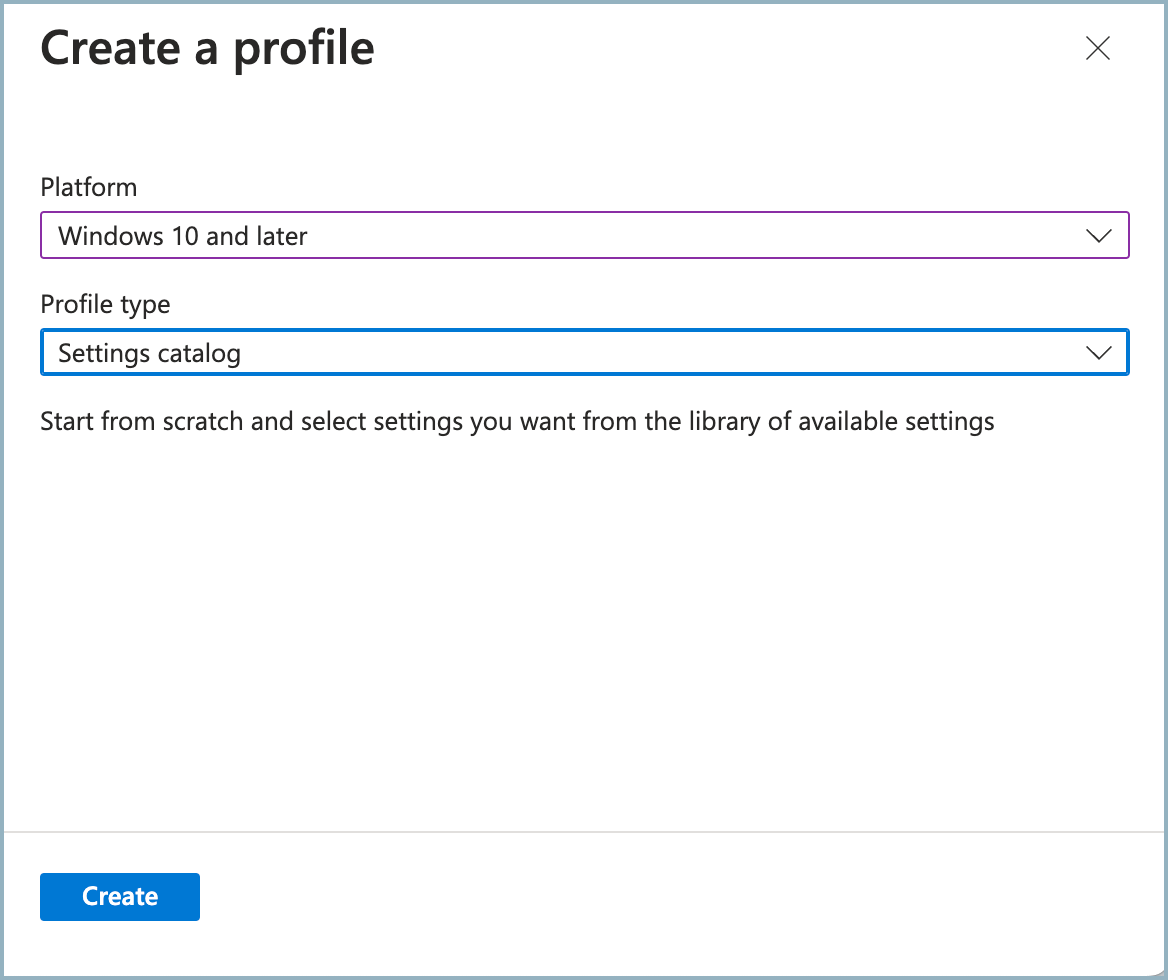
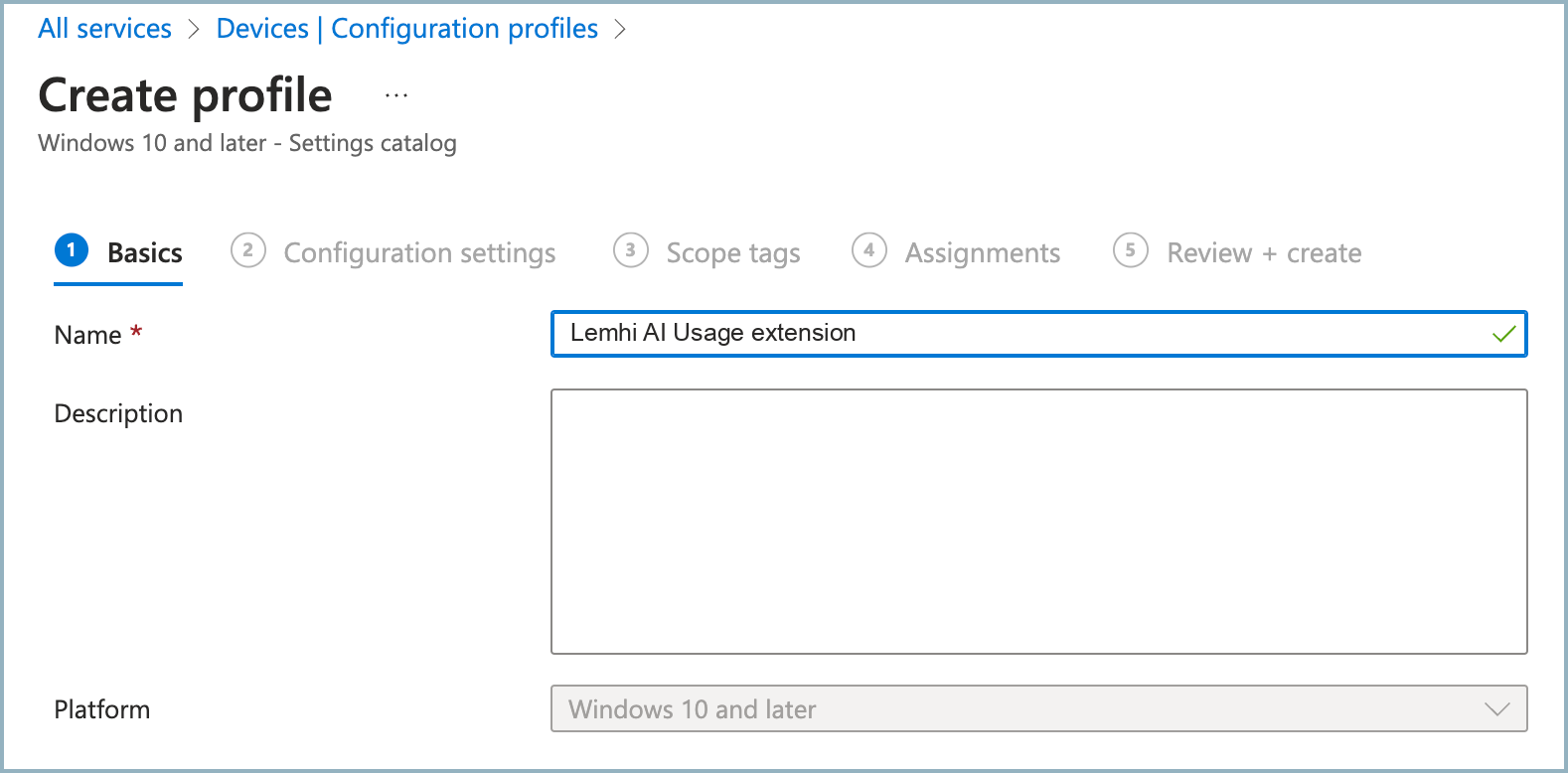
Set Platform to Windows 10 and later and Profile type to Settings catalog. Name it
Lemhi AI Usage extension.
Add Google Chrome → Extensions → Configure the list of force-installed apps and extensions: Enabled, one entry
kkjkfiijligobjmfghkheppbpmbngicl.
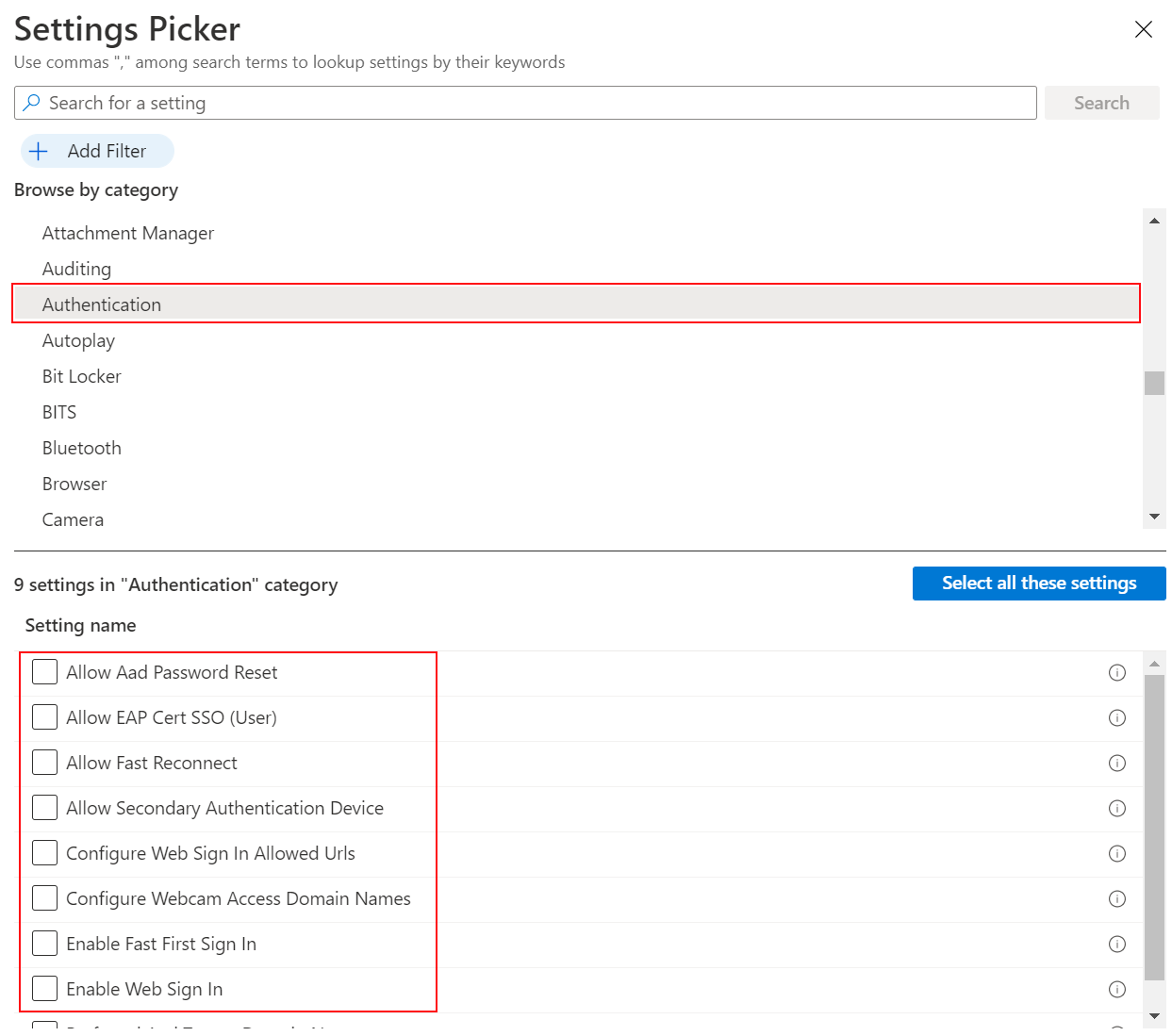

Add Microsoft Edge → Extensions → Control which extensions are installed silently: Enabled, one entry
kkijfgcaljdkipkaehbgkihkopbmigjm.
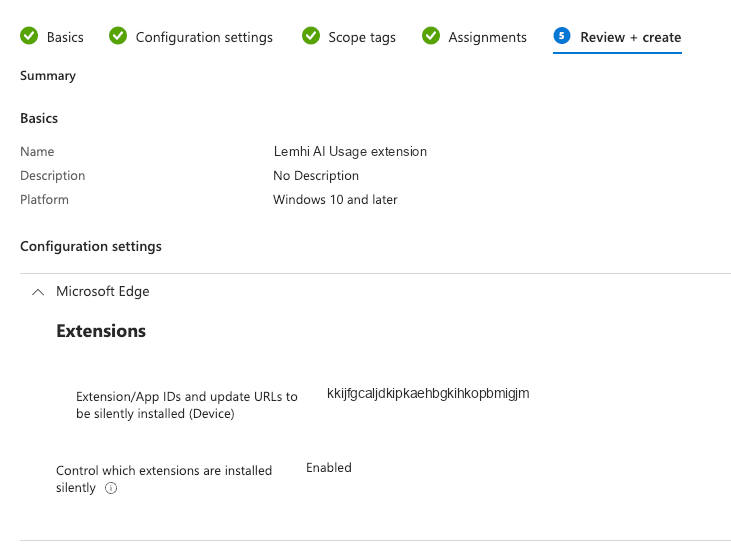
Assign the profile to the client's device group.
If the tenant already has a profile that sets either list, add the id to that profile instead. Two profiles that set the same list to different values conflict, and Intune applies neither.
2. Platform script (this client's values)
Devices → Scripts and remediations → Platform scripts → Add → Windows 10 and later.
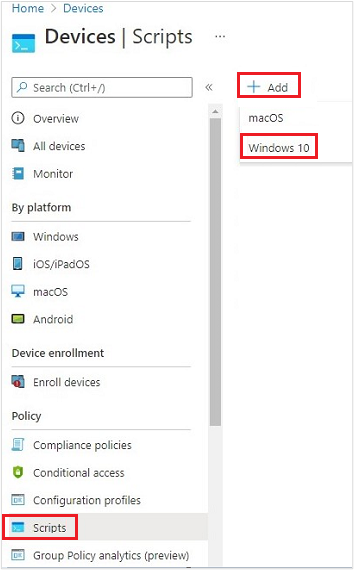
Use the script you copied from Engage, unchanged. It writes only the three values, not the install list, because the profile handles that.
Set Run this script using the logged on credentials to No.
Set Enforce script signature check to No.
Set Run script in 64 bit PowerShell Host to Yes.
Assign it to the same device group.
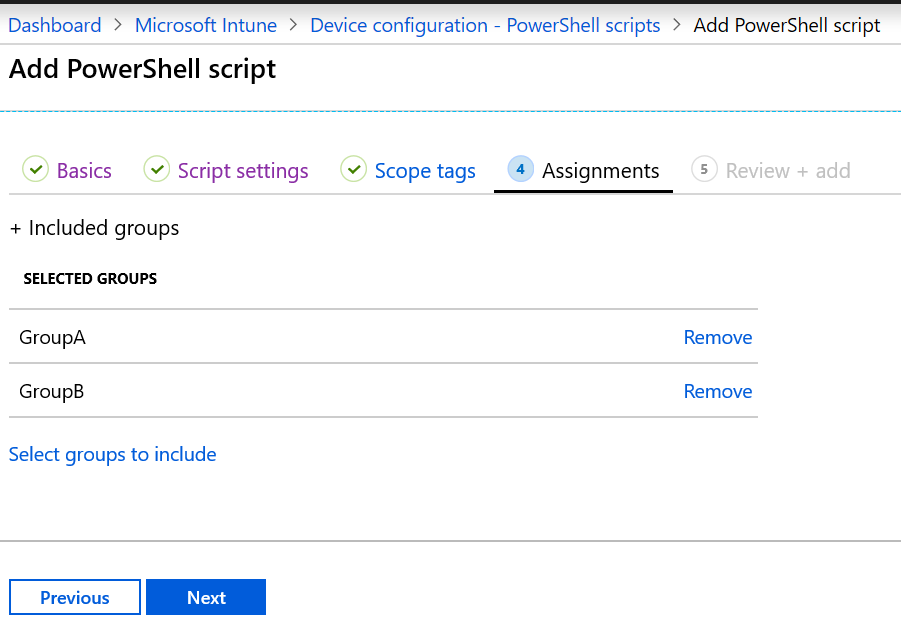
This page shows the script with its placeholders. The Deployment tab serves it with the real ingest URL already filled in, and Copy script adds the client's key. Copy the script from the Deployment tab, not from this page.
# Lemhi AI Usage extension: this client's values. Writes registry policy only.
$ClientKey     = '<deployment key>'
$IngestBaseUrl = '<ingest base URL>'
$ComputerName  = $env:COMPUTERNAME

$Policies = @(
  'HKLM:\SOFTWARE\Policies\Google\Chrome\3rdparty\extensions\kkjkfiijligobjmfghkheppbpmbngicl\policy',
  'HKLM:\SOFTWARE\Policies\Microsoft\Edge\3rdparty\extensions\kkijfgcaljdkipkaehbgkihkopbmigjm\policy'
)

foreach ($policy in $Policies) {
  if (-not (Test-Path $policy)) { New-Item -Path $policy -Force | Out-Null }
  New-ItemProperty -Path $policy -Name 'clientKey'     -Value $ClientKey     -PropertyType String -Force | Out-Null
  New-ItemProperty -Path $policy -Name 'computerName'  -Value $ComputerName  -PropertyType String -Force | Out-Null
  New-ItemProperty -Path $policy -Name 'ingestBaseUrl' -Value $IngestBaseUrl -PropertyType String -Force | Out-Null
}
3. Check
Intune applies profiles and scripts on the device's next check-in, which can take up to a few hours. After that, restart the browsers. The computer appears on the client's Deployment tab within a few minutes.
Rotate the key
Intune runs a platform script once per device, and again only when the script changes. To deploy a new key, edit the script:
Regenerate the key on the client's Deployment tab.
Click Copy script under Deploy with Intune again.
Paste it over the platform script.
Remove
Remove the ids from the settings catalog profile, or delete the profile.
Remove the platform script assignment.
Run the removal script from Remove the extension from a client's computers once as a new platform script.
Known limits
A platform script runs once. If something deletes the values later, they stay gone until the script changes. Intune Remediations re-run on a schedule, but they need Windows Enterprise E3/E5 (or Microsoft 365 E3/E5) licensing, which Business Premium doesn't include. If the client has it, the deploy script can run as a remediation.
Intune-only computers without an RMM agent get no re-run. If the client also has your RMM, use the RMM guide instead of both Intune objects. Don't also set the force-install list in a settings catalog profile.
Next
Check that a computer has the extension
Related
Was this helpful?
Still need help? Ask the team