Check that your service boards have a default status and team
Confirm each ConnectWise service board has a default status and default team so Lemhi can file Compass tickets on it.
Written By The Lemhi Product Team
Last updated 1 day ago
For the MSP admin preparing ConnectWise. When you finish, every board you want Compass tickets on has a default status and a default team, so Lemhi offers it in its board pickers.
Lemhi creates tickets using each board's own defaults. A board can take Compass tickets only when it has a default status and a default team. Lemhi hides any board missing either one from its board pickers. The board picker lists only active service boards, not project boards. To send a task to a ConnectWise project, you pick the project and phase in the push dialog instead.
Do this for each board you want Compass tickets to land on.
Go to System > Setup Tables and open Service Board, then open the board.
If you are creating a new board for Compass work, give it a Location and a Department first.
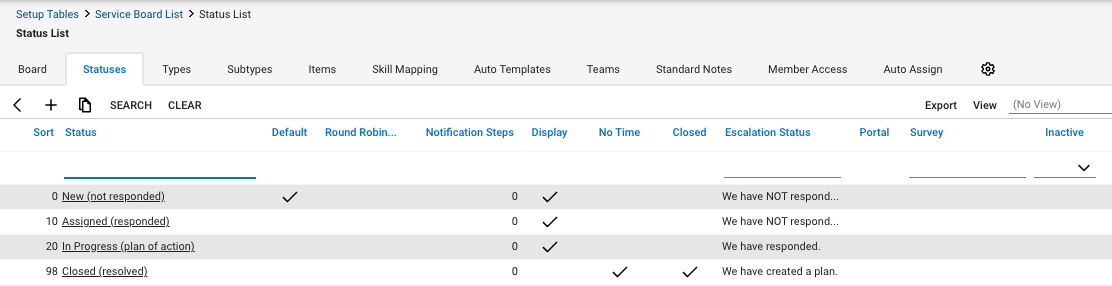
On the Statuses tab, confirm one status shows a check in the Default column. While you are there, confirm your closing status shows a check in the Closed column. That is what lets Compass show a check mark and complete the task once the ticket is closed.
On the Teams tab, confirm at least one team exists and one of them shows a check in the Default column.
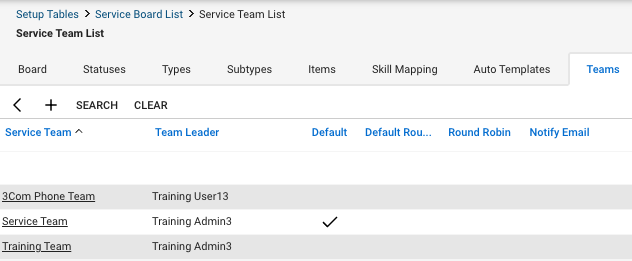
Check: Both tabs show a row with Default checked.
A board with no team at all is common on a board someone created recently. Add a team on the Teams tab and mark it as the default. Lemhi offers the board once both defaults are in place.
Next
Connect ConnectWise to Lemhi and choose a default board
Related
Was this helpful?
Still need help? Ask the team