Map clients to ConnectWise companies
Match each Lemhi client to its ConnectWise company with Auto-map, then finish the rest by hand.
Written By The Lemhi Product Team
Last updated 10 days ago
For a Lemhi Admin. When you finish, every client you want to push tickets for is matched to a ConnectWise company.
Every pushed ticket is filed under a ConnectWise company, so each Lemhi client needs to be matched to one. A client that is not mapped cannot be pushed.
On the ConnectWise page (Settings > Integrations > ConnectWise PSA > Manage), scroll to Client mapping.
Select Auto-map. Lemhi matches each unmapped client to a ConnectWise company, first by exact company name, then by the client's email domain against the company's website. You see a result such as "Mapped 42 of 50 clients. 8 need your attention."
Open the Unmapped tab. The badge shows how many clients are left.
For each client, select Choose a company, search, and pick the ConnectWise company.
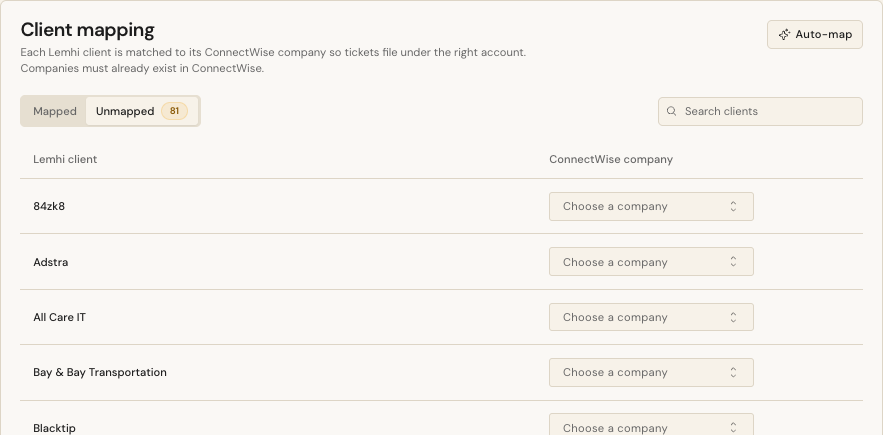
A client marked Needs review matched more than one company. The likely matches are listed first in the picker. Pick the right one.
Check: The Mapped tab lists your clients, each with how it was matched: Matched by name, Matched by domain, or Mapped by hand.
Companies must already exist in ConnectWise with the status Active. Lemhi never creates a company. It lists only companies whose status is named exactly Active, and never deleted ones. A company with any other status, including a custom one, does not appear in the picker or in Auto-map. Set it to Active in ConnectWise, or create the company, then map it here.
Changing a mapping later
On the Mapped tab, pick a different company for the client, or select Unmap. Neither change touches tickets already pushed. Clients you add to Lemhi later show up on the Unmapped tab; run Auto-map again or map them by hand.
Next
Push a Compass task to a ConnectWise ticket
Related
Was this helpful?
Still need help? Ask the team